
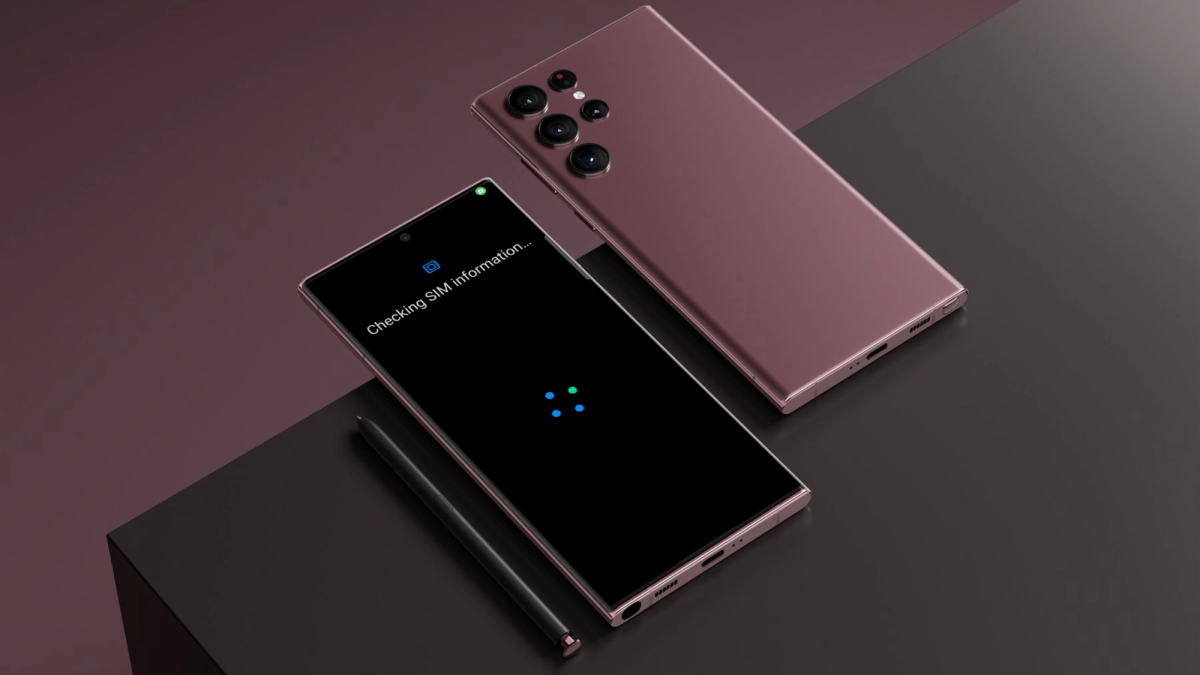
How to buy and add an eSIM for your Android device
KnowRoaming Android app guide
Buy an eSIM using the KnowRoaming app
1. While you have a stable internet connection, download KnowRoaming’s App from the Google Play Store.
2. Log In using your KnowRoaming account details or Sign Up with KnowRoaming and follow the Sign Up instructions until your account is verified and you are logged in.
3. Before purchasing an eSIM, ensure your device is eSIM compatible. Click here for a comprehensive list of eSIM compatible iPhones. Or test it yourself by dialling *#06#. Your IMEI number/s should appear. If it does, your phone is likely eSIM compatible.
4. Choose your destination by typing your destination into the search function, alternatively select a region or country from the ones listed.
5. Select the package that best aligns with your estimated data usage and trip duration (the most popular package is the 5GB one). If you need more data later, you can always top up your package then.
6. Once you have selected your package, proceed to payment. If you have a discount or promo code, please apply it in the Voucher Code section and click apply.
7. After a successful payment, you will be sent to the “My eSIMs” page. It is now time to set up your eSIM. We suggest setting this up with a stable internet connection, before you travel. Your package will only come into effect when you arrive at your destination.
When to add your eSIM
To ensure a smooth setup process,we recommend adding your eSIM just before your departure, as setup requires a stable Internet connection.
However, if you prefer, you can wait until you arrive in your destination country to activate your eSIM using Wi-Fi.
If you added your eSIM in your home country, you can turn the eSIM off until you reach your destination country.
Activation of the package only occurs when you use your eSIM in the country / region where it is eligible for connection.
Add your eSIM using the KnowRoaming app
1. Go to My eSIMs and click the Auto tab along the top of the screen.
2. Click on the add eSIM button.
3. The eSIM Add launcher will display, prompting you to add the network to your phone by clicking the Add button.
4. Wait for the connection to be complete which may take a few minutes
5. Once complete, you will see an “eSIM Added” message, this means your eSIM setup process is complete.
Activate your eSIM
Once within an eligible country for your eSIM package, switch Mobile Data to your eSIM.
1. Go to your Settings, Connections and then SIM manager.
2. Select Mobile Data and set it to your KnowRoaming eSIM.
3. Go back to your Settings and select Connections. Then Mobile Networks.
4. Ensure Data Roaming is turned on.
When you return from your trip
1. Go to Settings and tap on Connections.
2. Tap on SIM Manager.
3. Under eSIMs, toggle your KnowRoaming eSIM off.
4. Tap on Mobile Data and set it to your local SIM.
KnowRoaming website guide
Buy an eSIM using the KnowRoaming website
1. While you have a stable internet connection, go to www.KnowRoaming.com
2. Log In using your KnowRoaming account details or Sign Up with KnowRoaming and follow the Sign Up instructions until your account is verified and you are logged in.
3. Before purchasing an eSIM, ensure your device is eSIM compatible. Click here for a comprehensive list of eSIM compatible iPhones. Or test it yourself by dialling *#06#. Your IMEI number/s should appear. If it does, your phone is likely eSIM compatible.
4. Choose your destination by typing your destination into the search function, alternatively select a region or country from the ones listed.
5. Select the package that best aligns with your estimated data usage and trip duration (the most popular package is the 5GB one). If you need more data later, you can always top up your package then.
6. Once you have selected your package, proceed to payment. If you have a discount or promo code, please apply it in the Voucher Code section and click apply. You will notice.
7. After a successful payment, you will receive a QR code. It is now time to set up your eSIM. We suggest setting this up with a stable internet connection, before you travel. Your package will only come into effect when you arrive at your destination.
When to add your eSIM
To ensure a smooth setup process,we recommend adding your eSIM just before your departure, as setup requires a stable Internet connection.
However, if you prefer, you can wait until you arrive in your destination country to activate your eSIM using Wi-Fi.
If you added your eSIM in your home country, you can turn the eSIM off until you reach your destination country.
Activation of the package only occurs when you use your eSIM in the country / region where it is eligible for connection
Add your eSIM using the KnowRoaming website
1. With a stable Internet connection, scan the QR code provided to you on the checkout page or confirmation email you received.
2. Click on the eSIM popup.
3. Add this plan to connect to a new mobile network.
4. Accept and continue all prompts
Activate your eSIM
Once within an eligible country for your eSIM package, switch Mobile Data to your eSIM.
1. Go to your Settings, Connections and then SIM manager.
2. Select Mobile Data and set it to your KnowRoaming eSIM.
3. Go back to your Settings and select Connections. Then Mobile Networks.
4. Ensure Data Roaming is turned on.
When you return from your trip
1. Go to Settings and tap on Connections.
2. Tap on SIM manager.
3. Under eSIMs, toggle your KnowRoaming eSIM off.
4. Tap on Mobile Data and set it to your local SIM.
Foire aux questions
No swapping SIM cards, no kiosk queues at the airport, set it up once and it's ready every time after.
With KnowRoaming, setup takes less than five minutes. Using the automatic setup in the KnowRoaming app, you can download and add your eSIM in just a few taps. This makes it one of the fastest and most reliable ways to get connected before your trip.
Simply add the eSIM profile on your unlocked, eSIM-compatible device before you travel. Once you arrive in a supported country, turn on your eSIM, and you'll be connected!
Absolutely, in fact, that’s what we recommend.
It’s quick and easy. Use the KnowRoaming app to purchase and automatically add your eSIM in just a few taps. Some devices may require manual setup, but our support team and setup guides are available 24/7.
Yes, it's best to add your eSIM before you travel so you can connect as soon as you land. KnowRoaming makes this easy with automatic setup via the KnowRoaming app, or you can use the QR code option for manual setup.