
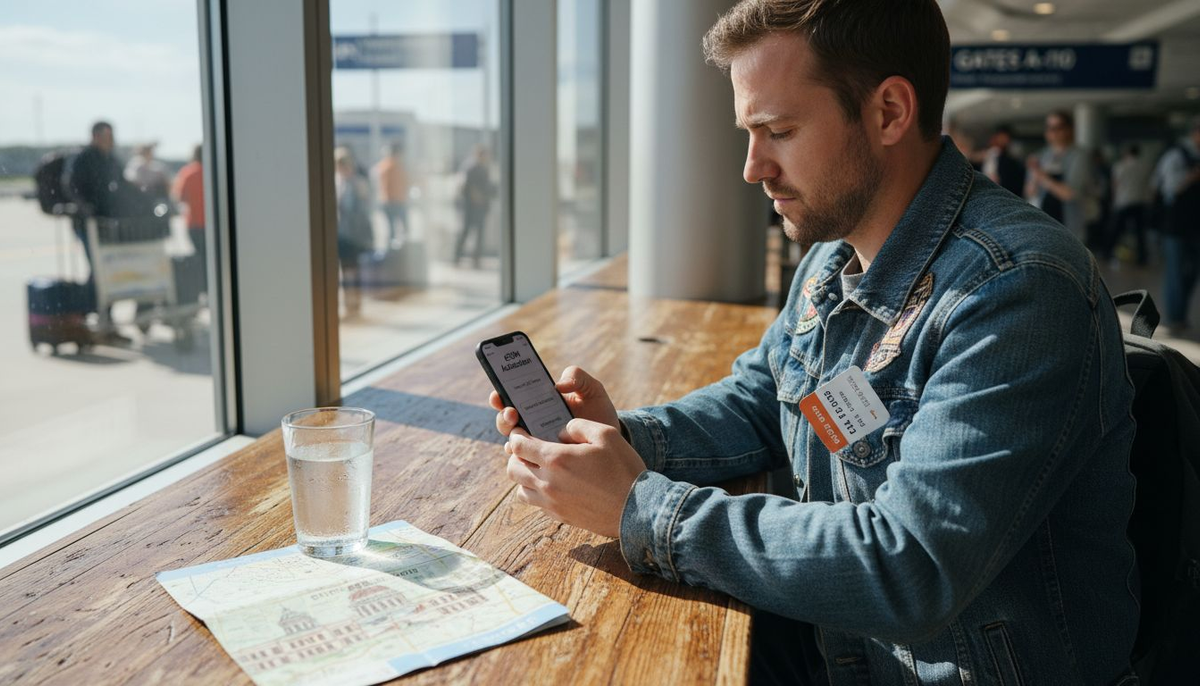
7 essential tips for using eSIM on iPhone 14 abroad
Most American professionals are unaware that over 60 percent of international travelers now choose eSIM for global mobile connections to avoid high roaming fees. Constantly swapping physical SIM cards is a hassle that nobody wants during a busy trip. If you want quick activation, smooth switching, and secure data anywhere from Japan to France, this guide will show you how the iPhone 14’s eSIM technology simplifies mobile life for the American traveler.
Table of contents
- Understand How eSIM Works on iPhone 14
- Check Device Unlock Status Before You Travel
- Choose the Best International eSIM Plan for Your Trip
- Activate Your eSIM on iPhone 14 Step-by-Step
- Switch Between eSIM Profiles Easily
- Manage Data Usage to Avoid Unwanted Charges
- Stay Secure by Avoiding Public Wi-Fi with eSIM
Quick summary
Takeaway
Explanation
1. Check eSIM Compatibility Before Traveling
Ensure your destination supports eSIMs and download the relevant plan ahead of time for uninterrupted connectivity.
2. Confirm Device Unlock Status
Verify that your iPhone 14 is unlocked to avoid restrictions when using local or international eSIM plans during your travels.
3. Choose the Right eSIM Plan
Select an international eSIM plan that aligns with your data needs, budget, and duration of travel to ensure optimal connectivity.
4. Use Cellular Data Over Public Wi-Fi
Instead of public Wi-Fi, rely on eSIM cellular data for a more secure connection and to protect your personal information while abroad.
5. Monitor Data Usage Carefully
Regularly track your data consumption using your iPhone’s settings to avoid exceeding your data limits and incurring extra charges.
1. Understand how eSIM works on iPhone 14
An eSIM is a digital SIM card embedded directly into your iPhone 14, replacing the traditional physical SIM card. Unlike physical SIMs that require manual swapping, eSIM technology allows you to activate mobile plans digitally with just a few taps.
The iPhone 14 supports multiple eSIM profiles, which means you can store and switch between different mobile plans without needing multiple physical cards. This technology transforms how travelers manage connectivity by offering unprecedented flexibility. With an eSIM, you can add a new cellular plan quickly through a QR code, carrier app, or manual entry.
For international travelers, eSIM technology is revolutionary. Instead of hunting for local SIM cards or paying expensive roaming charges, you can now download and activate a new mobile plan directly on your device. The iPhone 14 supports dual eSIM functionality, enabling you to maintain two active cellular plans simultaneously perfect for separating personal and work lines or managing international travel arrangements.
Key eSIM Advantages: • No physical SIM card required • Quick digital activation • Support for multiple mobile plans • Enhanced security • Easy international switching
Pro tip: Before traveling, check your destination’s carrier compatibility and download your eSIM plan in advance to ensure seamless connectivity upon arrival.
2. Check device unlock status before you travel
Before jetting off internationally, confirming your iPhone 14 is unlocked is crucial for seamless mobile connectivity. An unlocked phone allows you to use local carrier SIMs and eSIMs worldwide without restrictions or complicated activation processes.
To verify your iPhone’s unlock status, navigate to Settings > General > About and look for the Carrier Lock information. If you see No SIM restrictions, your device is ready for international use. Alternatively, you can contact your current mobile carrier directly or use online IMEI checking tools to confirm your phone’s network compatibility.
Unlocked phones provide significant advantages for travelers. They enable you to switch between different mobile carriers and eSIM plans effortlessly, potentially saving substantial roaming charges. If your iPhone is still carrier locked, you will need to request an unlock from your current provider before traveling.
Unlock Status Verification Methods: • Check device settings • Contact mobile carrier • Use online IMEI verification services • Test with another carrier’s SIM card
What Can Prevent Unlocking: • Ongoing device payment plans • Contract obligations • Recent phone purchase • Unpaid carrier balance
Pro tip: Request your carrier unlock your iPhone at least two weeks before international travel to ensure smooth processing and prevent last minute connectivity issues.
3. Choose the best international eSIM plan for your trip
Selecting the right international eSIM plan is critical for maintaining seamless connectivity during your travels. Your mobile data strategy can make or break your travel experience, impacting everything from navigation to communication.
When evaluating international eSIM options, consider key factors like destination coverage, data volume, plan duration, and pricing. Different travelers have different needs some require constant high speed data, while others need minimal connectivity for occasional messaging and maps.
The best international eSIM plans offer flexibility and transparent pricing. Look for providers that support multiple countries, provide clear data limits, and offer reasonable expiration windows. Some travelers might prefer unlimited data plans, while budget conscious individuals might opt for smaller data packages.
Key Considerations for eSIM Selection: • Total number of supported destinations • Data volume and speed • Plan duration • Cost per gigabyte • Activation process • Customer support quality
Plan Types to Consider: • Country specific plans • Regional data packages • Global unlimited options • Pay as you go plans • Fixed duration packages
Pro tip: Calculate your expected data usage before purchasing an international eSIM plan and choose a package that provides a slight buffer above your estimated needs to avoid unexpected connectivity interruptions.
4. Activate your eSIM on iPhone 14 step-by-step
Activating an eSIM on your iPhone 14 is a straightforward process that eliminates the need for physical SIM card handling. With multiple activation methods available, you can quickly set up your international mobile plan before or during your travels.
To begin activating your eSIM plan, ensure you have a stable Wi-Fi connection and are running iOS 16 or later. Navigate to Settings > Cellular > Add Cellular Plan. You will typically encounter three main activation methods: QR code scanning, carrier app transfer, or manual plan entry.
eSIM Activation Methods: • QR Code Scanning • Carrier App Transfer • Manual Plan Entry • Quick Transfer from Another iPhone
Activation Requirements: • Wi-Fi connection • iOS 16 or later • Valid eSIM plan details • Unlocked iPhone 14 • Carrier compatibility
Detailed Activation Steps:
- Open Settings app
- Select Cellular menu
- Choose Add Cellular Plan
- Select your preferred activation method
- Follow on screen instructions
- Label your new plan
- Set default settings for calls and data
Pro tip: Always screenshot or save your eSIM activation details and carrier contact information as a backup in case you encounter connectivity issues during your travels.
5. Switch between eSIM profiles easily
Managing multiple eSIM profiles on your iPhone 14 offers unprecedented flexibility for international travelers. Your device can store several cellular plans simultaneously, allowing you to seamlessly transition between different mobile networks without carrying multiple physical SIM cards.
To switch between eSIM profiles, navigate to international travel packages in your Settings app under the Cellular menu. You can easily enable or disable specific cellular plans and choose which line to use for calls, messages, and cellular data. Only one data network remains active at a time, but you can configure automatic switching during calls.
eSIM Profile Management Options: • Activate specific cellular plans • Select default line for calls • Choose data network • Silence individual profiles • Delete unnecessary eSIM plans
Key Switching Features: • Store multiple international plans • Quick network transitions • Separate work and personal lines • Customize calling preferences • Manage data usage efficiently
Switching Steps:
- Open Settings
- Select Cellular menu
- Choose desired cellular plan
- Enable or set as default line
- Confirm network selection
Pro tip: Before traveling, download and pre configure multiple eSIM profiles to ensure smooth connectivity transitions across different countries and networks.
6. Manage data usage to avoid unwanted charges
Controlling your mobile data consumption while traveling is crucial to preventing unexpected roaming fees and maintaining your budget. Your iPhone 14 offers powerful tools to track and manage data usage across multiple eSIM profiles with precision and ease.
To monitor your data consumption, navigate to Settings > Cellular where you can view detailed usage statistics for each of your active cellular plans. The iPhone provides a comprehensive breakdown of data used by individual apps, helping you identify which applications are consuming the most bandwidth.
Data Management Strategies: • Track app specific data consumption • Set cellular data limits • Disable background app refresh • Use Wi-Fi whenever possible • Enable Low Data Mode • Restrict cellular data for specific apps
Key Data Tracking Features: • Separate data usage per eSIM • App level consumption metrics • Roaming usage alerts • Automatic data line switching • Cellular data toggle options
Recommended Data Saving Actions:
- Review app data consumption
- Disable cellular data for nonessential apps
- Download maps and content before traveling
- Use offline translation tools
- Limit streaming services
Pro tip: Configure cellular data alerts in your iPhone settings to receive notifications when you approach your predetermined data limit, preventing unexpected overages.
7. Stay secure by avoiding public Wi-Fi with eSIM
Public Wi-Fi networks are notorious cybersecurity traps that can expose your personal data to malicious actors. Using your iPhone 14’s eSIM cellular data provides a significantly more secure alternative for staying connected while traveling abroad.
Unlike vulnerable public Wi-Fi hotspots, international eSIM data plans offer encrypted, private connections that protect your digital information from potential hackers and unauthorized access. The embedded nature of eSIM technology in iPhone 14 models adds an extra layer of security by preventing physical SIM card tampering.
Public Wi-Fi Risks: • Man-in-the-middle attacks • Data interception • Network spoofing • Malware transmission • Identity theft
eSIM Security Advantages: • Encrypted cellular connections • No physical SIM vulnerability • Tamper resistant technology • Carrier level protection • Consistent network security
Recommended Security Practices:
- Prefer cellular data over public Wi-Fi
- Use VPN when necessary
- Disable automatic Wi-Fi connections
- Update device security settings
- Monitor network connections
Pro tip: Always toggle your iPhone’s Wi-Fi off when traveling and rely exclusively on your secure eSIM cellular data to minimize potential security vulnerabilities.
Below is a comprehensive table summarizing the key takeaways regarding eSIM functionalities, benefits, and management on the iPhone 14.
Topic
Description
Key Points
eSIM Overview
The eSIM is a built-in digital SIM that replaces the need for a physical SIM card in iPhone 14.
Supports multiple plans and eliminates card handling.
International Travel Benefits
Allows travelers to activate mobile plans digitally using carrier apps or QR codes, enabling seamless connectivity abroad.
Reduces roaming charges, supports dual eSIM for separate work and personal lines.
Device Unlocking
Ensure your device is unlocked to facilitate eSIM functionality globally.
Check Carrier Lock under settings or with your mobile provider.
Selecting eSIM Plans
Evaluate plans for their coverage, data allowance, and cost prior to travel.
Options include regional, global, pay-as-you-go, and unlimited plans.
eSIM Activation
Quick setup via settings menu using multiple methods.
Requires Wi-Fi, iOS 16 or later, and carrier compatibility.
Profile Management
Easily switch between eSIM profiles stored on your device.
Customizable for work or personal use, simplifies international connectivity.
Data Management
Use cellular data tools to track and control usage.
Monitor app data, set limitations, and utilize offline resources.
Enhanced Security
eSIM provides secure connectivity compared to public Wi-Fi.
Offers encrypted connections and minimizes security risks.
Take control of your iPhone 14 eSIM experience with KnowRoaming
Traveling internationally should not mean struggling with costly roaming charges or complicated SIM swaps. The article highlights common challenges such as managing multiple eSIM profiles, ensuring device unlock status, and avoiding public Wi-Fi security risks. At KnowRoaming, we understand these pain points and offer seamless international eSIM solutions designed to keep you connected effortlessly. Our digital SIM products provide instant activation, broad global coverage, and transparent pricing so you can focus on your journey instead of connectivity hassles.
Ready to enjoy simple and secure global mobile data on your iPhone 14? Visit KnowRoaming to explore our flexible international eSIM plans and take advantage of easy setup and reliable service. Learn more about how to activate eSIM plans and manage multiple profiles smoothly on the go. Don’t let roaming fees or confusing setups hold you back. Switch to KnowRoaming now and experience the freedom of true global connectivity.
Häufig gestellte Fragen
How to use an eSIM while backpacking is surprisingly simple. First, ensure your phone is unlocked and eSIM-compatible. Then, download the provider's app (like KnowRoaming's). You can choose your plan and add the eSIM digitally through the app, often by scanning a QR code. Once added, just enable data roaming for your eSIM, and you're ready to go, no physical cards or airport kiosks needed.
Two quick ways: tap "Is my device compatible" on any plan selector on KnowRoaming.com, or check your phone's settings for an "Add eSIM" option. Most phones sold since 2019 support eSIM.
KnowRoaming supports most eSIM-compatible phones, including iPhone, Samsung, Google Pixel, Huawei, and more. You can check your device using the compatibility checker on each KnowRoaming eSIM product page.
To check if your phone is eSIM compatible you can use KnowRoaming’s real-time compatibility tool. Go to any eSIM page for an instant check by scanning a QR code or tapping the eSIM compatible button.
No swapping SIM cards, no kiosk queues at the airport, set it up once and it's ready every time after.
With KnowRoaming, setup takes less than five minutes. Using the automatic setup in the KnowRoaming app, you can download and add your eSIM in just a few taps. This makes it one of the fastest and most reliable ways to get connected before your trip.
To confirm if your iPhone 14 is unlocked, go to Settings > General > About and look for Carrier Lock information. If it says ‘No SIM restrictions,’ your phone is unlocked and ready for international use.
To activate your eSIM on iPhone 14, go to Settings > Cellular > Add Cellular Plan. Follow the on-screen instructions for QR code scanning, carrier app transfer, or manual entry to complete the activation process.
To manage your eSIM profiles, go to Settings > Cellular, where you can enable or disable specific plans and select your default line for calls and data. This allows you to quickly switch between different eSIM profiles as needed.
When selecting an international eSIM plan, look for factors like total destination coverage, data speed, pricing, and the duration of the plan. Consider your expected data usage to choose a package that suits your needs without exceeding your budget.
To track your data usage, go to Settings > Cellular to view detailed statistics for each active cellular plan. Regularly monitor this information to adjust your usage and avoid unexpected charges.
Using public Wi-Fi can expose your personal data to various cybersecurity threats. Instead, opt for your eSIM cellular data, which provides a more secure and encrypted connection, protecting your sensitive information.