
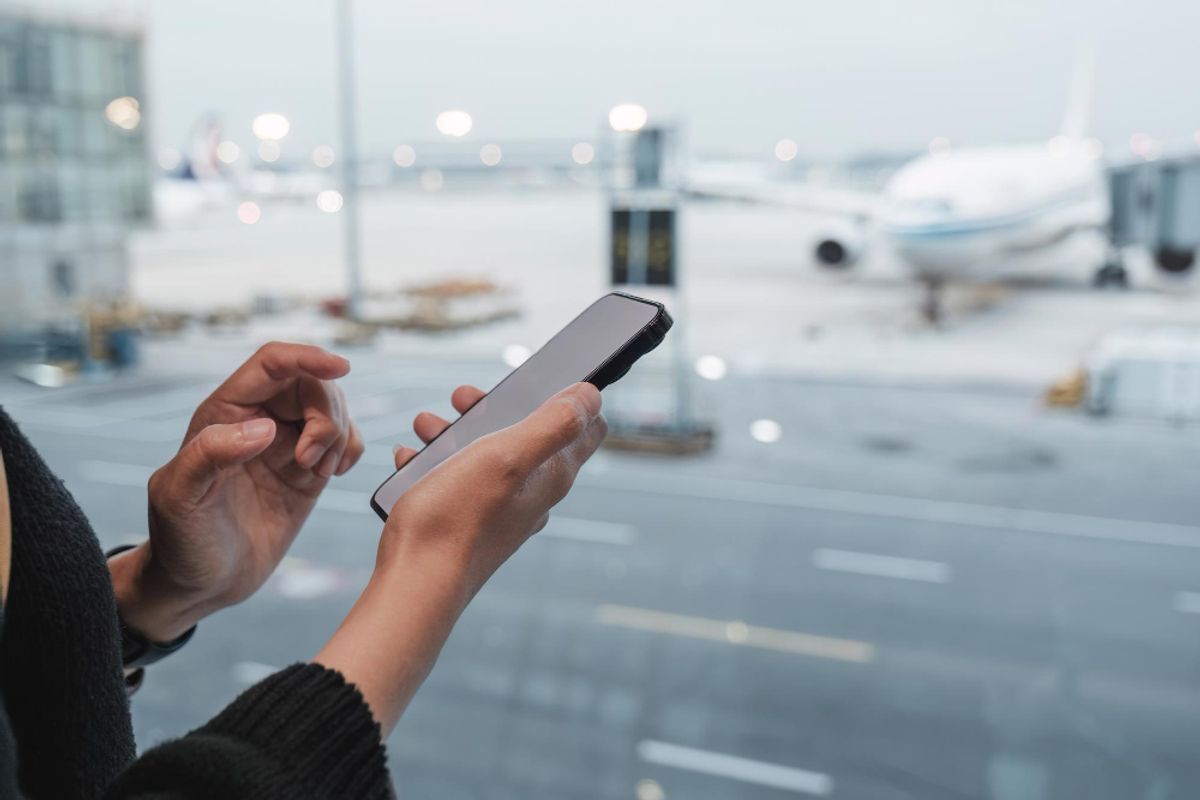
How to use airport Wi-Fi safely, a step-by-step guide
Airport Wi-Fi makes it easy to stay connected on the go, and nearly every traveler jumps onto these free networks without a second thought. But hold on. Cybercriminals have set up fake Wi-Fi hotspots in over 30 percent of major airports worldwide. The most surprising part is that most digital threats happen before you even hit connect, your device might already be at risk before you open your laptop.
Step 1: Assess your device's security settings
Before connecting to airport Wi-Fi, preparing your device is your first line of defense against potential security risks. Thoughtful configuration of your device's settings can significantly reduce vulnerabilities and protect your personal information from unauthorized access.
Start by thoroughly reviewing your device's wireless connection settings. Turn off automatic Wi-Fi connections that might randomly link to available networks without your explicit permission. This prevents your device from silently connecting to potentially unsecured networks while you're navigating the airport terminal.
Next, conduct a comprehensive software update across all your devices. Outdated operating systems and applications often contain security vulnerabilities that cybercriminals can exploit. Check for system updates on your smartphone, tablet, or laptop before traveling. Modern devices with current security patches provide stronger protection against potential network intrusions.
Activate your device's built-in security features to create additional layers of protection. Enable your device's firewall and consider using a reputable virtual private network (VPN) that encrypts your internet traffic. A VPN masks your online activities and provides an extra shield when browsing on public networks.
Carefully examine which applications have background network access. Some apps continuously transmit data, which could expose sensitive information. Review and restrict background data permissions for non-essential applications, especially social media and email clients that might automatically sync or refresh.
Before connecting to airport Wi-Fi, verify these key security checkpoints:
- Confirm your device's operating system is fully updated
- Check that automatic Wi-Fi connections are disabled
- Ensure your firewall is active
- Review and limit background app network permissions
- Consider adding a reliable VPN application
By methodically assessing and configuring your device's security settings, you create a robust defense mechanism against potential wireless network threats.
Step 2: Connect to the airport Wi-Fi network
Connecting to airport Wi-Fi requires careful navigation to ensure your digital safety. Not all wireless networks are created equal, and selecting the right connection can mean the difference between secure browsing and potential cyber risks.
Begin by locating the official airport Wi-Fi network. Look for clear signage displaying the network name or ask airport staff for the correct network credentials. Avoid connecting to networks with generic names like "Free Airport Wi-Fi" or those that appear slightly misspelled, as these could be malicious traps set up by cybercriminals to steal your information.
Before selecting the network, scan the available options carefully. Verify the network name matches exactly what is displayed on official airport communication channels. Official airport networks typically have specific naming conventions that include the airport's name or a recognizable identifier. If you are uncertain, consult airport information desks or official customer service representatives who can confirm the legitimate network.
When you locate the correct network, pay close attention to any connection requirements. Some airport networks might require you to accept terms of service or provide minimal personal information. Read these terms carefully and only input the absolute minimum information necessary. Avoid networks that request extensive personal details or seem overly intrusive.
After selecting the network, your device will attempt to establish a connection. Watch for connection confirmation messages and be prepared to enter any required passwords or accept usage terms. If the connection process seems unusual or generates unexpected security warnings, discontinue the connection attempt and seek assistance from airport staff.
Verify your network connection through these critical checkpoints:
- Confirm the network name matches official airport communications
- Check that the connection uses HTTPS protocols
- Ensure your device shows a secure connection symbol
- Verify no unexpected pop-ups or unusual connection requests appear
- Limit your activities to non-sensitive browsing
Remember that a momentary pause to verify network authenticity is far better than risking your personal data. By approaching airport Wi-Fi connections with careful scrutiny, you transform a potentially risky digital environment into a secure browsing experience.
Step 3: Use a VPN for secure browsing
A Virtual Private Network (VPN) serves as your digital shield when navigating the treacherous waters of public airport Wi-Fi. This essential tool creates an encrypted tunnel for your internet traffic, rendering your online activities invisible to potential digital eavesdroppers and cybercriminals lurking on the same network.
Download and add a reputable VPN application before your travel to ensure you have a reliable security tool ready when you need it. Choose a VPN service with strong encryption protocols, a strict no-logging policy, and servers located in multiple countries. Many top-tier VPN providers offer mobile apps that work seamlessly across smartphones, tablets, and laptops, providing comprehensive protection for all your devices.
Once you have selected your VPN, complete the setup and create an account. Most modern VPN services offer user-friendly interfaces that make connection simple. Before connecting to airport Wi-Fi, activate your VPN and select a server location. While you might be tempted to choose a server in your home country, selecting a server in a nearby region can often provide faster connection speeds without compromising your security.
Pay close attention to your VPN's connection status. Look for a clear indication that your connection is secure, typically shown by a lock icon or a message confirming encrypted connection. Some VPN applications provide additional security features like automatic kill switches that instantly disconnect your internet if the VPN connection drops, preventing any potential data exposure.
While using a VPN significantly enhances your security, it's not an absolute guarantee of complete protection. Continue practicing cautious browsing habits. Avoid accessing sensitive financial information or entering login credentials for critical accounts while on public networks, even with a VPN active.
Verify your VPN's effectiveness through these key checkpoints:
- Confirm the VPN is actively running before accessing any websites
- Check that your IP address appears to be from the server location you selected
- Ensure no data is leaking outside the encrypted connection
- Monitor connection speed and stability
- Periodically reconnect if you experience any interruptions
By implementing a robust VPN strategy, you transform your potentially vulnerable airport Wi-Fi experience into a secure and private browsing session.
Your digital safety becomes a proactive shield, not a reactive response.
Step 4: Avoid accessing sensitive information
Public airport Wi-Fi networks represent a digital minefield where cybercriminals can potentially intercept your most confidential data. Your strategy must be simple yet vigilant: treat every public network connection as an untrusted environment where sensitive information should remain strictly off-limits.
Financial transactions are completely forbidden when connected to airport wireless networks. This means no online banking, no credit card purchases, and no accessing investment accounts. The risk of potential data interception far outweighs any momentary convenience. If you absolutely must conduct a financial transaction, wait until you can use a secure, private network or utilize your mobile carrier's cellular data connection.
Personal account logins represent another critical vulnerability. Avoid entering passwords for email, social media, cloud storage, or any platform containing personal information. Cybercriminals can easily capture login credentials on unsecured networks, potentially compromising multiple accounts with a single intercepted password. If you must check an urgent message, consider using your mobile device's cellular data connection instead of the airport Wi-Fi.
Work-related communications demand similar caution. Postpone accessing company documents, sending confidential emails, or sharing sensitive professional information until you are on a secure network. Many organizations have strict protocols about handling sensitive data in public spaces, and violating these guidelines could expose both personal and organizational security.
For travelers who absolutely need to stay connected, consider alternative communication strategies. Utilize offline modes in your email applications, draft messages without sending, or use encrypted messaging platforms that provide additional security layers. Your smartphone's mobile data can serve as a more secure alternative for urgent communications.
Implement these critical safeguards when using public networks:
- Never enter financial login credentials
- Avoid accessing personal email accounts
- Postpone sensitive work communications
- Use cellular data for urgent transactions
- Enable two-factor authentication on critical accounts
Remember that momentary inconvenience is a small price to pay for protecting your digital identity. By maintaining strict boundaries around sensitive information, you transform potential vulnerability into proactive digital security. Your personal and professional data remains protected, giving you peace of mind during your travels.
Step 5: Log out and disconnect after use
The final line of defense in protecting your digital information involves meticulously disconnecting from airport Wi-Fi networks and thoroughly clearing your digital tracks. This step is not merely a recommendation but a critical security practice that prevents potential unauthorized access to your personal data.
Completely log out of every website and application you accessed during your time on the airport network. Do not simply close browser tabs or minimize applications, as many platforms maintain active sessions that could expose your information. Click the explicit logout option for each service, ensuring your credentials are fully terminated. Pay special attention to email accounts, social media platforms, and any sites where personal information might be stored.
After logging out, disable your device's Wi-Fi connection entirely. Navigate to your wireless settings and toggle the Wi-Fi off, which severs any potential lingering network connections. This extra step prevents your device from automatically reconnecting or maintaining background data transfers that could compromise your security.
Take a moment to clear your browsing history, cookies, and cached data. Most modern browsers offer simple one-click options to erase your digital footprint. By removing temporary internet files and session data, you eliminate potential breadcrumbs that could provide insights into your online activities or store sensitive authentication tokens.
Consider your device's additional settings that might expose information. Disable automatic file sharing, location services, and any cloud synchronization features that could inadvertently transmit data while you believe you are disconnected. These background processes can silently leak information if not properly managed.
Verify your disconnection through these critical checkpoints:
- Confirm explicit logout from all websites and applications
- Verify Wi-Fi is completely disabled
- Clear browser history and cached data
- Check that no background sync processes are active
- Restart your device to ensure a complete reset
Disconnecting is more than a technical action it is a mindful security ritual. By treating each public network interaction as a temporary and potentially risky engagement, you transform your digital presence from vulnerable to vigilant. Your proactive approach ensures that the convenience of airport Wi-Fi never compromises your personal digital security.
Take control of your connectivity and security when traveling
Travelers following our step-by-step guide on using airport Wi-Fi safely know the risks of unsecured networks and the hassle of constantly toggling between device security settings. Worrying about online threats or losing access to personal and work data overseas can ruin your travel experience. There is a faster, safer way to stay connected abroad, skip unreliable airport Wi-Fi and give yourself true peace of mind with KnowRoaming's eSIM solutions. Connect instantly, avoid roaming charges, and keep your personal information off risky public networks.
Why settle for stressful network setups or slow, insecure hotspots? With KnowRoaming, you get instant digital SIM activation, transparent billing, and global coverage at your fingertips. Give yourself a hassle-free experience every time you travel. Visit KnowRoaming.com now and see how effortless international connectivity can be.
Pertanyaan yang Sering Diajukan
How to use an eSIM while backpacking is surprisingly simple. First, ensure your phone is unlocked and eSIM-compatible. Then, download the provider's app (like KnowRoaming's). You can choose your plan and add the eSIM digitally through the app, often by scanning a QR code. Once added, just enable data roaming for your eSIM, and you're ready to go, no physical cards or airport kiosks needed.
No swapping SIM cards, no kiosk queues at the airport, set it up once and it's ready every time after.
With KnowRoaming, setup takes less than five minutes. Using the automatic setup in the KnowRoaming app, you can download and add your eSIM in just a few taps. This makes it one of the fastest and most reliable ways to get connected before your trip.
Yes, it's best to add your eSIM before you travel so you can connect as soon as you land. KnowRoaming makes this easy with automatic setup via the KnowRoaming app, or you can use the QR code option for manual setup.
You can buy your eSIM right before you leave, or when you arrive at your destination. It is an easy process that simply requires a stable Internet connection.
If you delete the eSIM profile from your phone, it can no longer connect to the network on that plan, although the plan itself is not canceled. To get it back, rescan the QR code you were sent with your eSIM purchase, or re-add it from the KnowRoaming app, and you can be up and running again quickly.
To ensure your device is secure before connecting to airport Wi-Fi, turn off automatic Wi-Fi connections, update all software, enable your firewall, and review background app permissions. Also, consider using a reputable VPN to enhance security.
Locate the official airport Wi-Fi network by checking signage or asking staff, avoid generic network names, carefully review connection requirements, and ensure your connection shows secure indicators such as HTTPS protocols before proceeding.
A VPN creates an encrypted tunnel for your internet traffic, making your online activities invisible to potential cybercriminals. Always activate your VPN before connecting to airport Wi-Fi to safeguard your data.
While connected to airport Wi-Fi, avoid accessing sensitive information such as online banking, entering personal account passwords, or conducting work-related communications that involve confidential data. Use cellular data for urgent transactions whenever possible.
Need the exact taps for your phone? See adding your eSIM on iPhone, adding your eSIM on Android, or adding your eSIM on Samsung.