Monitoring Your eSIM Data Usage
Last Updated: May 22, 2026
4.5

By Caitlin Clark, SEO Copywriter and Travel Content Creator Published: May 2025 | Last Updated: May 2026

I have run out of data mid-trip more times than I want to admit. Once in Portugal, once in Bangkok, and once on a long-haul layover in Dubai when I really needed Google Maps to cooperate.
Every time, I had thought I had enough. Every time, I was wrong.
The problem is that most advice about travel eSIM data is based on estimates, not real testing. "Google Maps uses about 5 to 10 MB per hour." "Instagram uses around 100 MB per hour." Figures like these are everywhere online, but nobody was actually running the apps in controlled conditions and measuring what came out.
So I did it myself.
Using a KnowRoaming travel eSIM and my iPhone's built-in cellular data counter, I ran six travel apps for exactly 10 minutes each, reset between every test. Then I tracked everything happening in the background simultaneously. The results surprised me, and they are going to change how you plan your data.
How much data does a travel eSIM use per hour?
More than you think. In my real-world test, six apps consumed a combined 848 MB in just over one hour of active use. That is nearly 1 GB per hour, before accounting for background activity running at the same time.
The honest answer is that eSIM data consumption depends on three things: which apps you are running, whether you are on a 4G or 5G network, and how much background activity your phone allows. What I can give you is something nobody else has published: the actual, measured numbers from a live travel eSIM session.
How the test worked
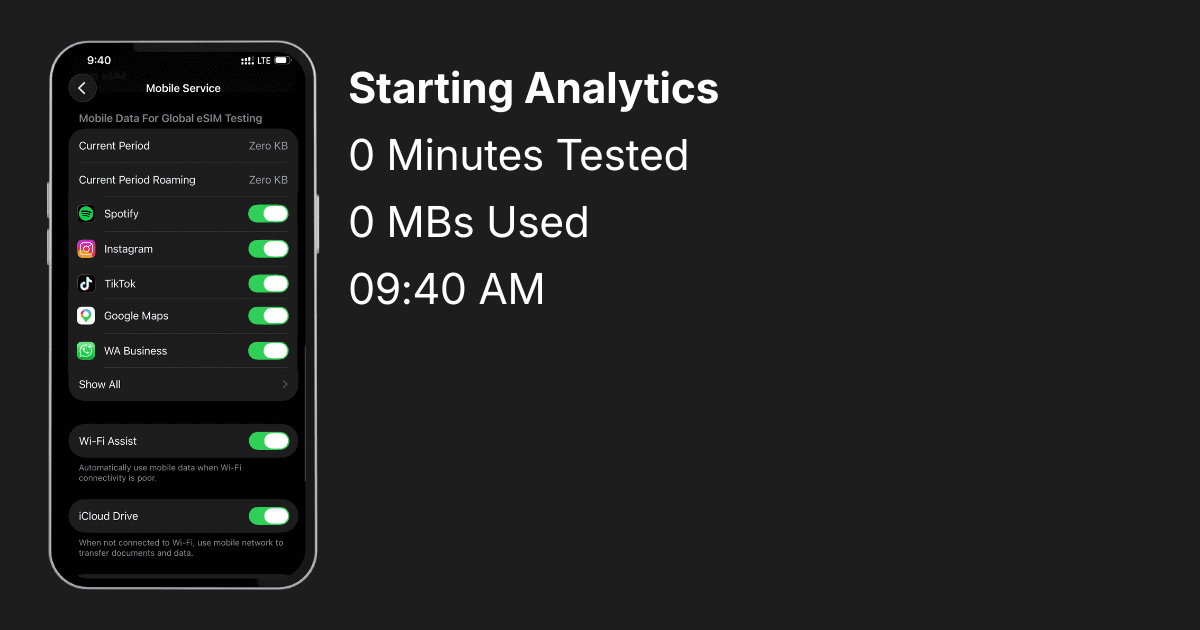
Test conditions: iPhone with a KnowRoaming travel eSIM active. iOS built-in cellular data counter reset to zero before each individual app test. Each app ran for exactly 10 minutes of active, continuous use: Maps in navigation mode, Spotify playing music, Instagram browsing Reels, TikTok scrolling the For You page, WhatsApp in an active video call, and Teams in a live meeting. Background app activity was tracked simultaneously across the full 67-minute session. A separate idle test was conducted later the same day: phone fully at rest, no apps recently opened, screen off for 60 minutes. No Wi-Fi throughout. Cellular only.
This methodology matters because it removes the variables that make most published estimates unreliable. The numbers below are what a KnowRoaming eSIM actually recorded, not what a spreadsheet predicts.
The KnowRoaming Data Drain Index: real test results
These are the measured results from the test session, in order from highest to lowest data consumption.
| App | Data Used | Hourly Equivalent |
|---|---|---|
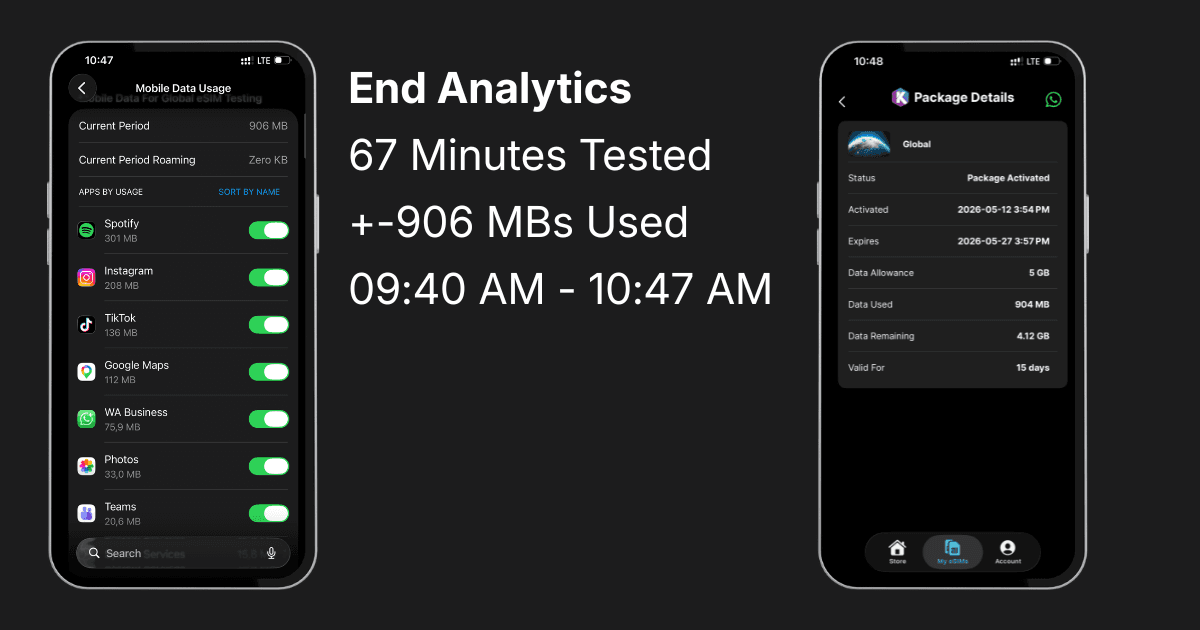
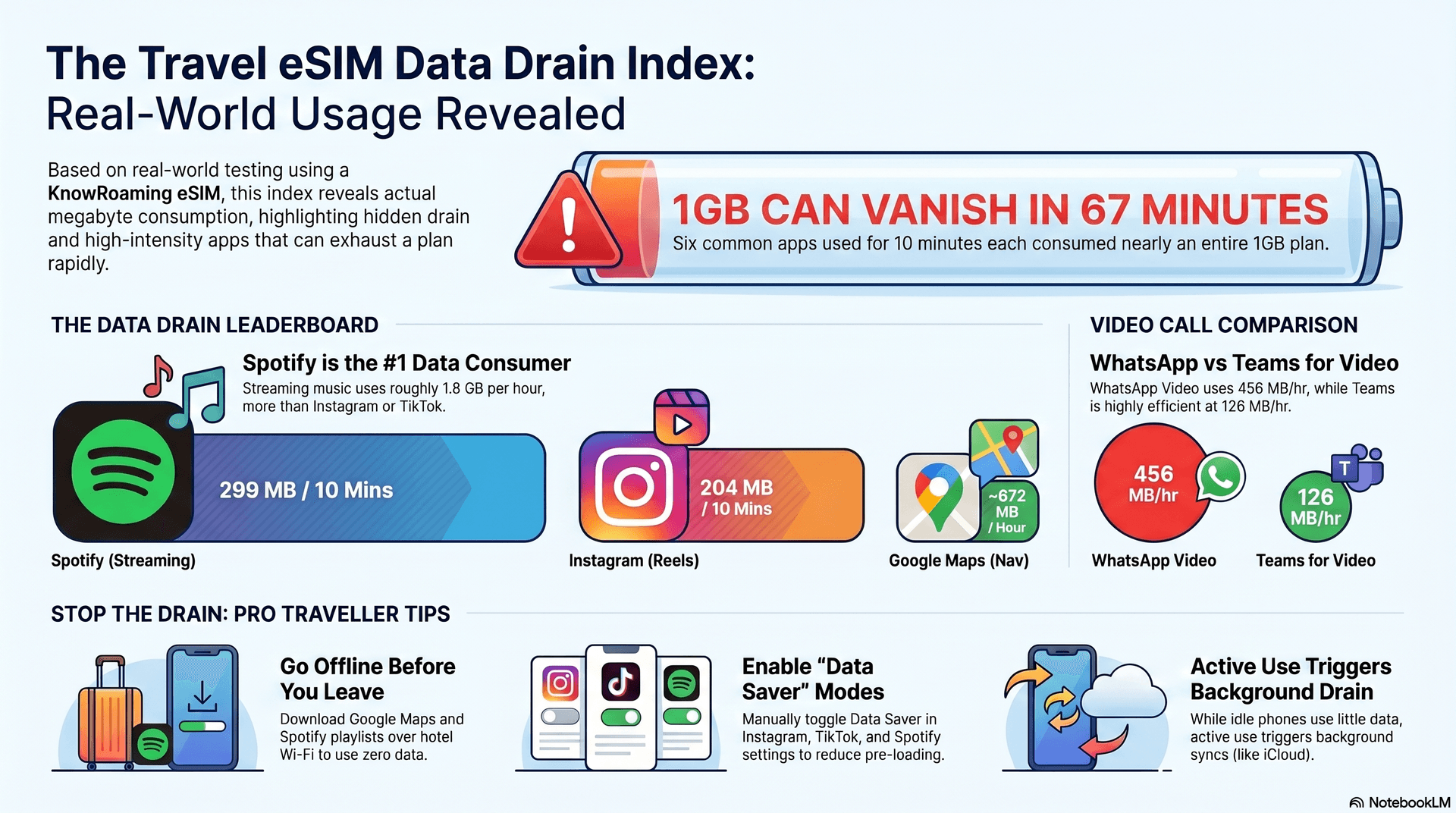
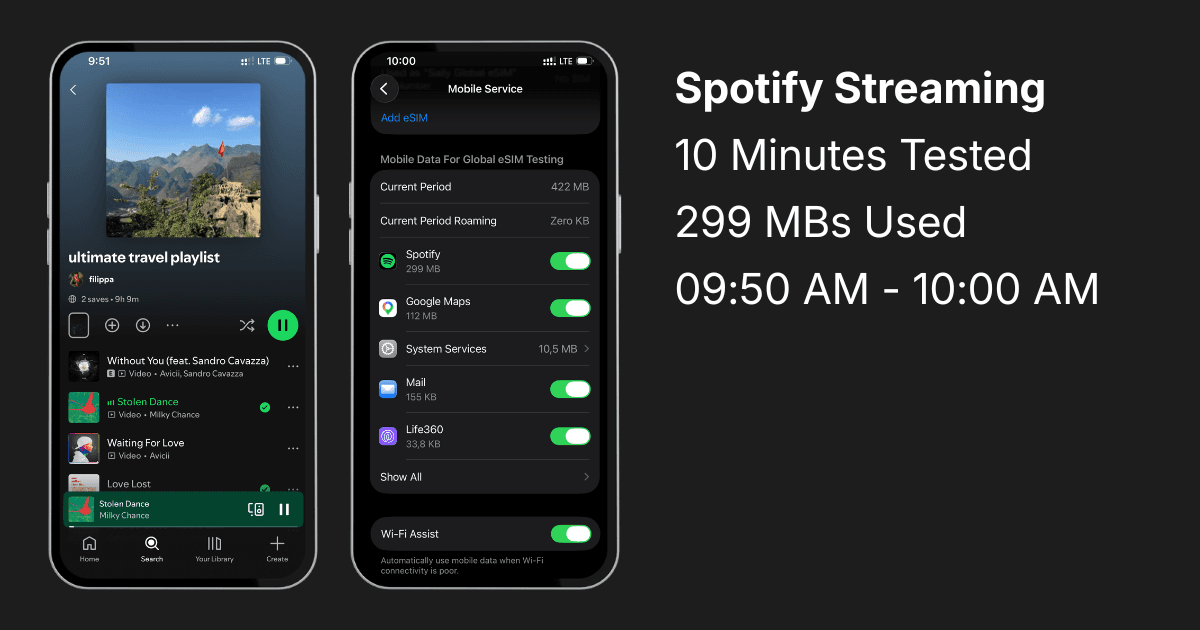
| Spotify Streaming | 299 MB | ~1.8 GB/hr |
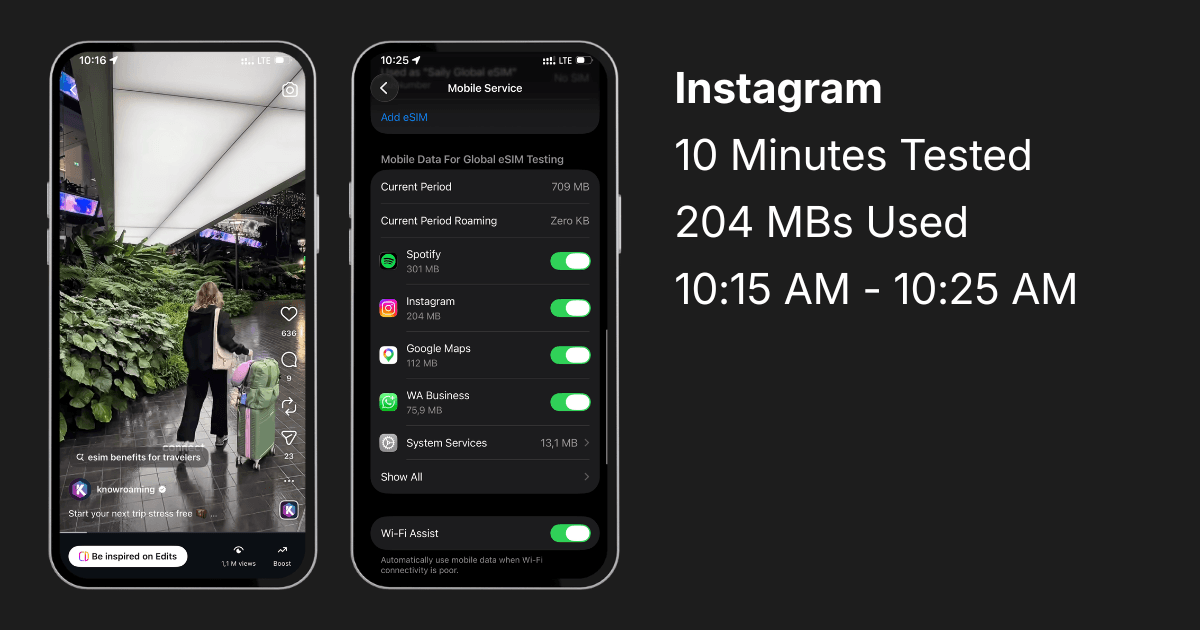
| Instagram (Reels) | 204 MB | ~1.2 GB/hr |
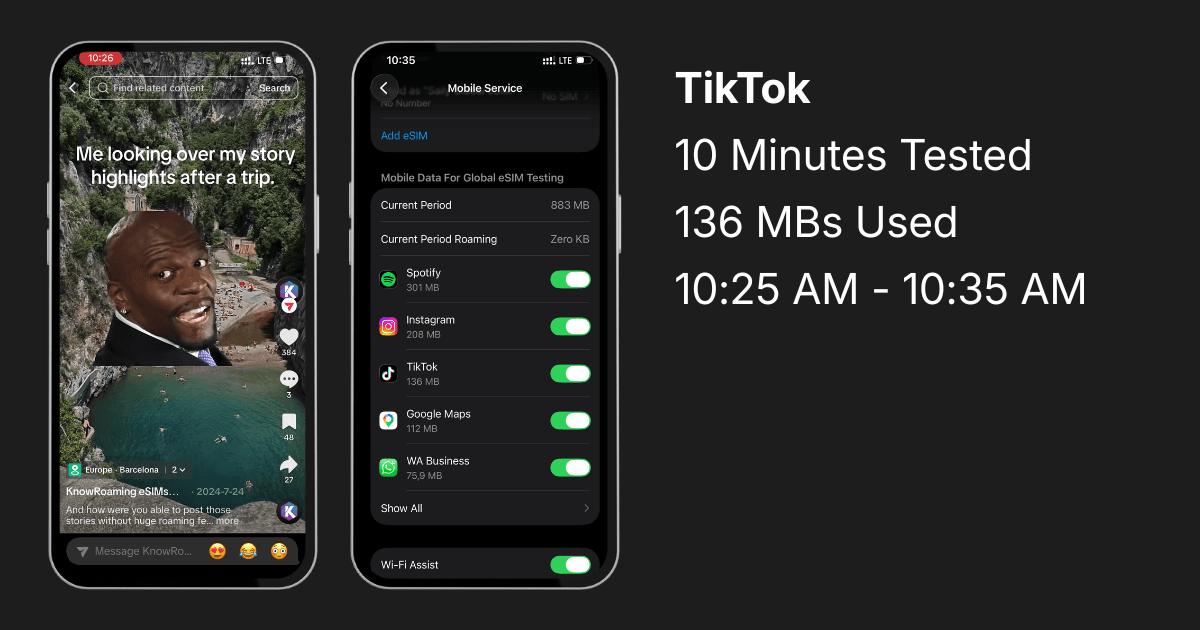
| TikTok | 136 MB | ~816 MB/hr |
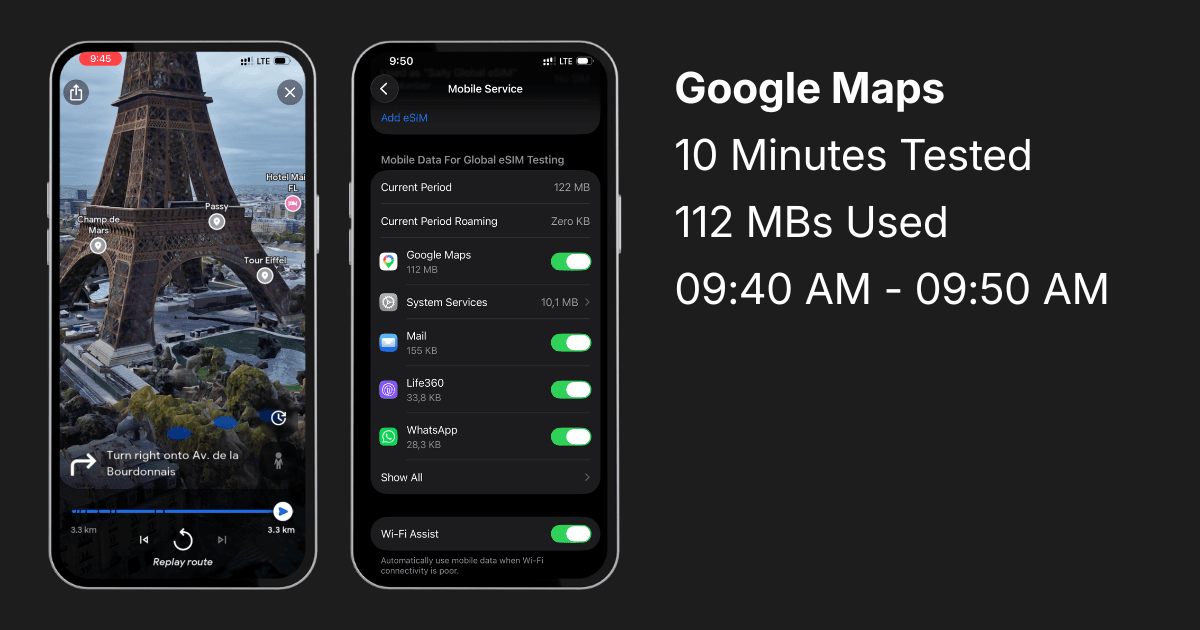
| Google Maps (Navigation) | 112 MB | ~672 MB/hr |
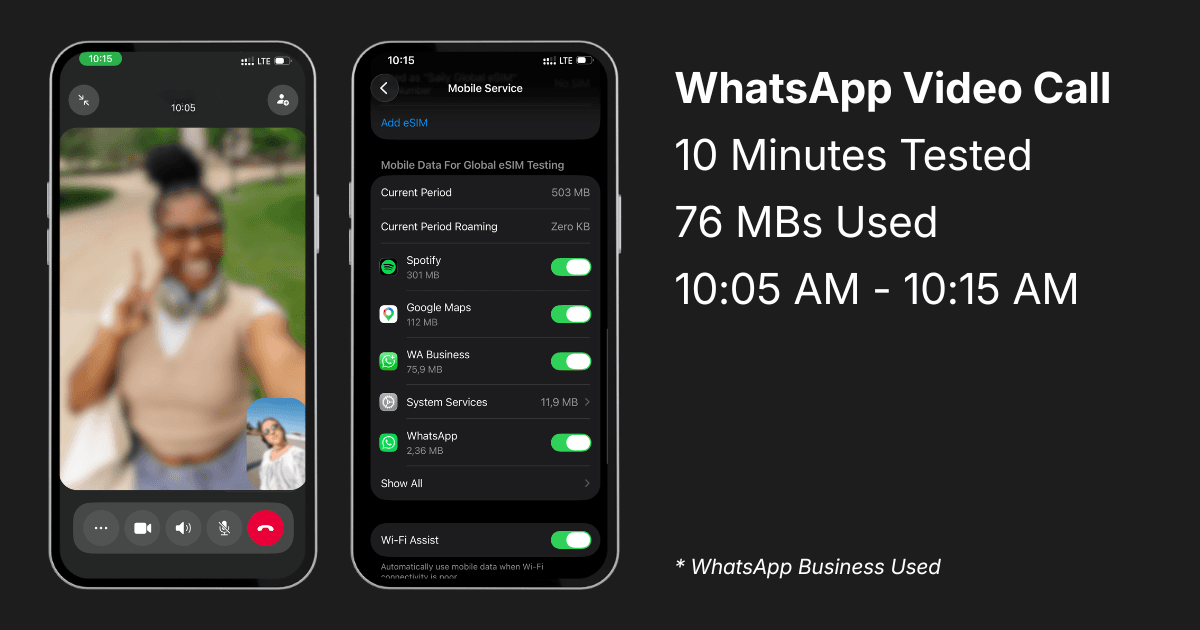
| WhatsApp Video Call | 76 MB | ~456 MB/hr |
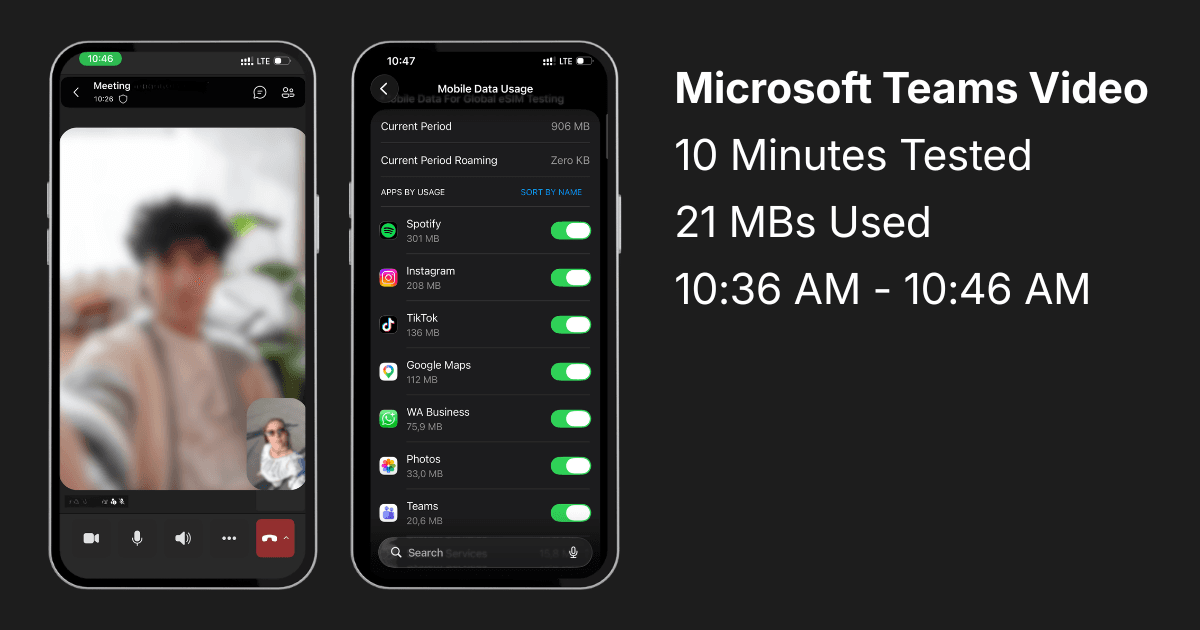
| Microsoft Teams Video | 21 MB | ~126 MB/hr |
| Background activity (simultaneous) | 55 MB | across 67 min |
| Total Session | 906 MB | 67 minutes |
Key finding: Six apps running for roughly 10 minutes each, with background processes running simultaneously, consumed 906 MB in just 67 minutes. That is nearly an entire 1 GB plan gone in just over an hour of normal travel phone use.
Does 5G use more data than 4G?
This is one of the most underappreciated data drains for modern travelers, and it is worth addressing before diving into the app-by-app breakdown.
When a phone connects to a 5G network, streaming apps automatically upgrade their quality settings. Spotify shifts to higher bitrate audio. YouTube and Netflix default to higher resolution video. Instagram and TikTok serve sharper content. The apps do this without asking, because 5G signals that bandwidth is available.
The result is that the same apps you use on 4G can consume significantly more data on 5G, without any change in how you use them.
How to prevent 5G from quietly upgrading your streaming quality:
- YouTube: Tap the three dots while a video is playing > Quality > select 360p or 480p manually. YouTube will not override a manual quality selection.
- Netflix: App Settings > Video Quality > set to "Save Data" or a specific resolution. This overrides automatic quality selection regardless of network speed.
- Spotify: Settings > Audio Quality > set Cellular Streaming to Normal or Low. Spotify will not auto-upgrade if this is locked.
- Instagram and TikTok: Enable in-app Data Saver modes (covered in the app sections below), which cap quality regardless of connection speed.
On iPhone, you can also go to Settings > Cellular > Cellular Data Options > Voice and Data and switch from 5G Auto to LTE. This forces the phone to stay on 4G and prevents apps from triggering 5G quality upgrades entirely. It is a blunt but effective approach if data conservation is a priority.
App-by-app: what is actually eating your eSIM data
Spotify: the app travelers forget to worry about
Spotify was the single heaviest data user in the test at 299 MB per 10 minutes. Most people budget for Instagram or TikTok and completely forget that streaming music runs constantly in the background of an entire travel day. At this rate, a six-hour travel day with Spotify playing would burn through over 10 GB on its own.
How to reduce Spotify data usage while traveling:
- Download playlists, albums, and podcasts over hotel Wi-Fi before you leave. This is the single most effective action. Offline playback uses zero cellular data.
- Set audio quality to Low (Settings > Audio Quality > Cellular Streaming > Low). Lower quality means fewer MBs per minute if streaming is unavoidable.
- Turn off "Download using cellular" (Settings > Storage) to prevent Spotify from downloading new content over the eSIM.
- Close Spotify fully when not in use. The background data showed Spotify consumed 2 MB even while not actively playing.
Instagram: Reels are quietly wrecking your data plan
Instagram used 204 MB in 10 minutes, and almost all of it came from Reels autoplay. Browsing static posts uses considerably less, the problem is that Reels start playing the moment you pause scrolling, and most people do not notice how quickly it adds up.
How to reduce Instagram data usage while traveling:
- Turn on Data Saver (Profile > Settings > Account > Cellular Data Use > Data Saver). This stops videos from preloading and reduces overall consumption significantly.
- Avoid the Reels tab entirely when on cellular. Browse your feed instead and save Reels for Wi-Fi.
- Upload Stories and posts from Wi-Fi only. Uploading high-resolution photos and video uses more data than viewing. Queue content and upload from the hotel.
- Turn off video autoplay (Settings > Accessibility > Videos) to stop Reels loading before they are chosen.
TikTok: designed to keep you watching, designed to drain data
TikTok used 136 MB per 10 minutes. The autoplay algorithm is built to keep users in the app, which means it is also built to keep drawing on the data plan. Passive scrolling is just as data-heavy as actively searching and watching, because the next video starts loading before the current one has finished.
How to reduce TikTok data usage while traveling:
- Enable Data Saver (Profile > Settings and Privacy > Content Preferences > Data Saver). This reduces video quality and stops preloading on cellular.
- Download videos to watch offline while connected to Wi-Fi.
- Set a screen time limit for TikTok when traveling. Even 20 minutes on cellular at this consumption rate costs around 272 MB.
- Restrict TikTok's background data access in phone settings so it is not refreshing the For You page when the app is closed.
Google Maps: the one with the easiest fix
At 112 MB per 10 minutes, active Google Maps navigation used significantly more data than most guides suggest. The commonly cited figure of 5 to 10 MB per hour does not reflect real-world conditions on a live eSIM connection.
How to reduce Google Maps data usage while traveling:
- Download offline maps before leaving. In Google Maps, search for the destination city, tap the name at the bottom, then select Download. Once saved, turn-by-turn navigation uses almost no cellular data. Step by step: open Maps > search city name > tap the card at the bottom > tap the three-dot menu > Download offline map.
- Use the downloaded map even in areas with signal. Maps prioritises offline data when available.
- Search for places and get directions over Wi-Fi before heading out, then let the offline map handle navigation.
- Switch to Google Maps Lite Mode for basic browsing if the area has not been downloaded, which uses less data than the full version.
WhatsApp video calls: actually the responsible choice
WhatsApp performed well on the positive end. At 76 MB per 10 minutes, a 30-minute video call home uses around 228 MB. WhatsApp voice calls use even less. For staying in touch while traveling, WhatsApp is significantly more data-efficient than FaceTime, Zoom, or a standard mobile call routed over data.
How to reduce WhatsApp data usage even further:
- Switch to voice calls instead of video when video is not needed. Voice calls use a fraction of the data.
- Enable "Use Less Data for Calls" in WhatsApp Settings > Storage and Data > Use Less Data for Calls. This reduces call quality slightly but cuts consumption further.
- Avoid sending large videos or original-quality photos over cellular. Send them over Wi-Fi, or reduce quality in WhatsApp settings.
- Mute group chats that auto-download media, which downloads images and videos silently in the background.
Microsoft Teams: best for work calls on the road
Teams video used just 21 MB per 10 minutes, making it the most data-efficient video call option in the test. For work meetings from a cafe or airport lounge, Teams is significantly lighter than Zoom or Google Meet.
How to reduce Microsoft Teams data usage even further:
- Turn off the camera and present audio-only when video is not required. Video is the primary driver of data consumption.
- Lower outgoing video quality in Teams Settings > Devices > select a lower resolution.
- Use Teams on Wi-Fi for file sharing and uploads. Sending files during a meeting over cellular adds meaningfully to data use.
- Turn off background blur and virtual backgrounds, these features require additional processing and can increase data usage during calls.
The finding that surprised me most: background data drain
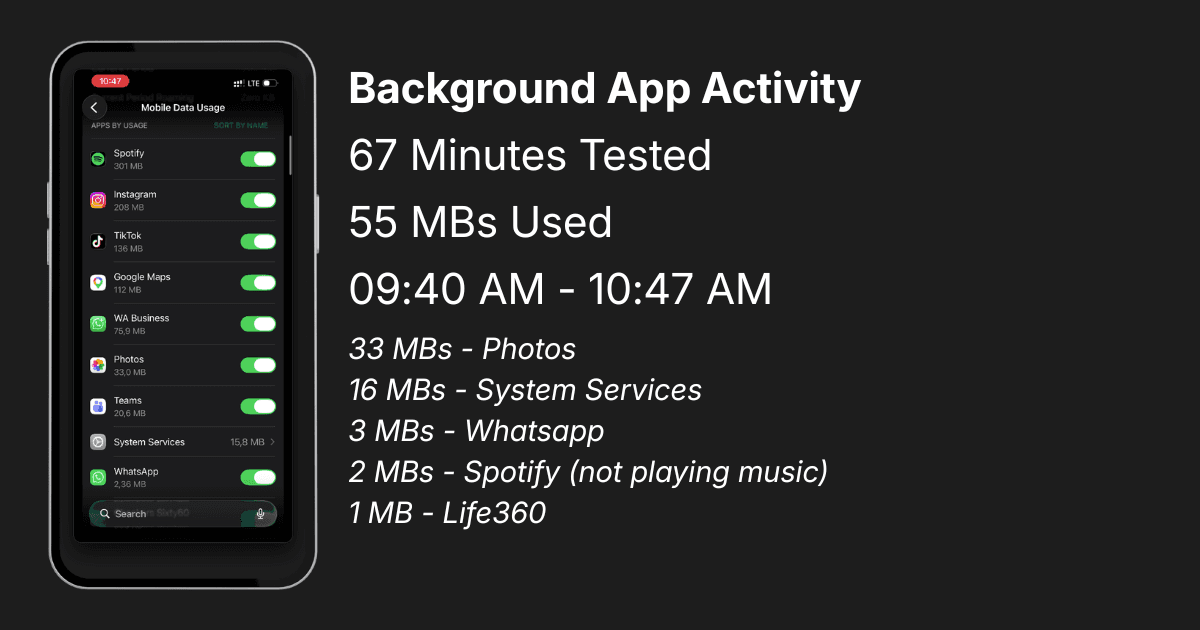
While all six active app tests were running, background processes were simultaneously consuming an additional 55 MB across that same 67-minute session. This is not data used intentionally; it was the phone quietly working in parallel the entire time.
| Background Source | Data Used |
|---|---|
| Photos (iCloud sync) | 33 MB |
| System Services | 16 MB |
| 3 MB | |
| Spotify (not playing) | 2 MB |
| Life360 | 1 MB |
| Total background | 55 MB |
Every photo taken during the session was uploading to iCloud in the background. System processes ran continuously. WhatsApp synced group media silently. Spotify refreshed its cache between tests. Life360 tracked location without pause.
This brings the true session total to 906 MB, not just the 848 MB from the six active apps, but everything the phone was doing during that window.
The idle test: what a truly untouched phone uses
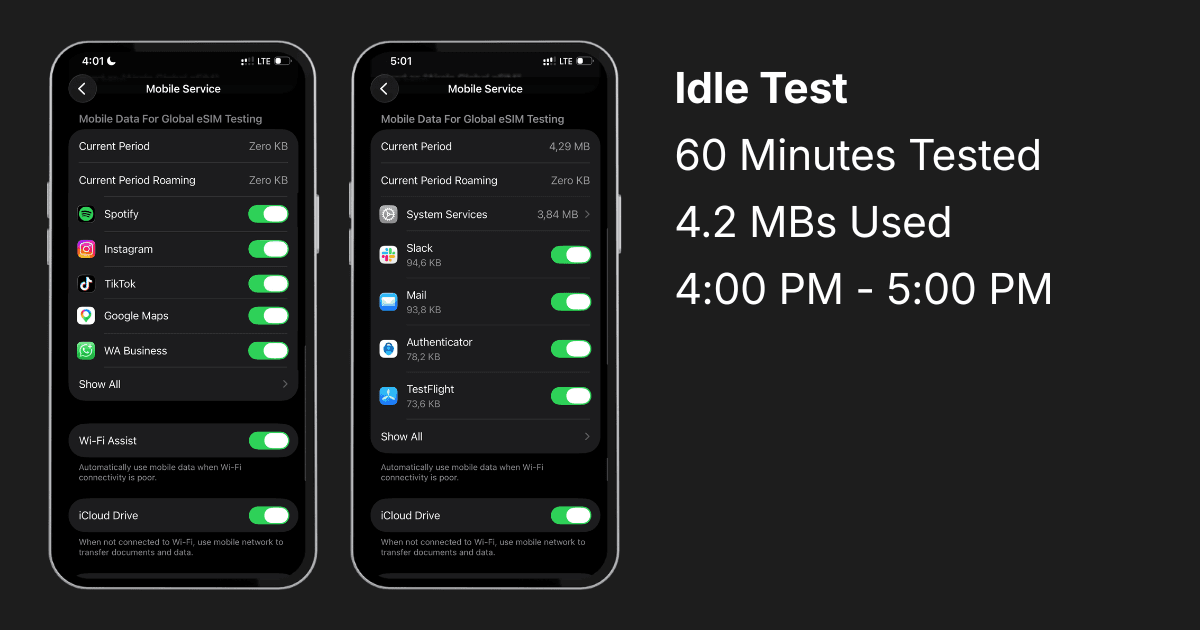
To understand what a phone consumes when genuinely left alone, a completely separate test was run hours later. At 4:00 PM, the phone was set down and not touched for 60 minutes. No apps had been recently opened. The result: just 4.2 MB.
The key insight: Background drain is not caused by a phone simply being connected to a network. It is driven by app activity. The 55 MB recorded during the active session was triggered by the apps themselves, syncing, uploading, and refreshing as a direct result of recent use. A truly idle phone, on the same KnowRoaming eSIM, used almost nothing.
How to stop the background drain:
- Turn off iCloud Photo Library cellular sync: Settings > Photos > toggle off Mobile Data
- Restrict background app refresh to Wi-Fi only: Settings > General > Background App Refresh > Wi-Fi
- Revoke cellular access for non-essential apps: Settings > Cellular > scroll to each app > toggle off
- On Android: Settings > Network and Internet > Data Saver to restrict background data across all apps
The hidden cost of data anxiety
There is a side effect to poor data planning that rarely gets discussed: data anxiety. It is the quiet stress of watching a data balance tick down in an unfamiliar city, not knowing if there is enough left to get back to the hotel, reach someone in an emergency, or navigate an unexpected detour.
Travelers who experience data anxiety often start self-rationing in ways that affect the actual trip: skipping Maps to save data and getting lost, not calling home, avoiding looking up restaurant recommendations. The irony is that a well-sized plan and a reliable monitoring tool like the KnowRoaming app costs very little compared to the experience it protects.
Knowing exactly how much your apps use, which is what the data in this article exists to show, removes the guesswork. A plan chosen from real numbers, not assumptions, means you can actually use your phone without watching it anxiously.
How much eSIM data do I actually need for travel?
Based on the real test data, here is a practical breakdown by traveler type.
| Traveler Type | Typical Weekly Usage | Common Apps |
|---|---|---|
| Light (maps, messaging, browsing) | 3 to 5 GB | Google Maps (offline), WhatsApp, occasional browsing |
| Moderate (social media, some streaming) | 8 to 12 GB | Instagram, WhatsApp video, Google Maps, light TikTok |
| Heavy (streaming, hotspot, video calls) | 15 GB or more | Spotify, TikTok, Instagram Reels, Zoom, hotspot |
KnowRoaming offers both regional and global eSIMs across 200+ destinations, so the plan can be matched to actual usage rather than defaulting to whatever sounds reasonable and hoping for the best.
How to monitor your eSIM data usage: step-by-step
Knowing how much data apps consume is only useful if the balance is also being watched throughout the trip. Running out mid-trip, especially when Maps is needed, is avoidable with the right setup from day one.
Using the KnowRoaming app
The KnowRoaming App available on IOS and Android
The KnowRoaming app displays remaining data balance in real time and updates continuously as it is used. Low-balance alerts can be set so there is a notification before hitting empty, and topping up takes a few taps from the same screen. For travelers managing multiple eSIMs or multi-country trips, everything is visible from one dashboard.
Step-by-step: setting up data monitoring on iPhone
- Open Settings and tap Cellular
- Scroll down to see data used per app since the last reset
- Tap Reset Statistics at the very bottom of the page. Do this at the start of every trip so figures only reflect that trip
- To set a cellular data warning, go to Settings > Screen Time > App Limits and create a limit category for cellular-heavy apps
- For low-balance alerts on your eSIM plan, open the KnowRoaming app > Account > Notifications and enable data balance alerts
New to KnowRoaming on iPhone? Watch the full step-by-step setup guide: How to install, activate and uninstall a KnowRoaming eSIM on iOS
Step-by-step: setting up data monitoring on Android
- Go to Settings > Network and Internet > Data Usage
- Tap Mobile Data Usage to see a breakdown by app
- Tap the three-dot menu and select Set Mobile Data Warning. Enter a threshold (e.g., 80% of your plan) to receive an automatic alert
- To restrict background data globally, enable Data Saver from the same menu
- For eSIM balance alerts, open the KnowRoaming app > Account > Notifications and enable data balance alerts
Using both the KnowRoaming app and the device's native tracker together gives the clearest picture: the app shows remaining plan balance, the device tracker shows exactly which apps have been spending it.
New to KnowRoaming on Android? Watch the full step-by-step setup guide: How to install, activate and uninstall a KnowRoaming eSIM on Android
5 habits that will make your eSIM data last longer
Download everything before leaving the hotel. Offline maps, Spotify playlists, podcasts, and any Netflix episodes. Doing this over Wi-Fi costs nothing. Doing it over an eSIM costs significantly.
Manually set streaming quality before crossing the border. On 5G especially, apps will auto-upgrade to higher quality without asking. Lock YouTube, Netflix, and Spotify to lower quality settings before landing so they do not make that decision automatically.
Kill background app refresh for everything except essentials. The background test showed 55 MB consumed in parallel during the session. Restricting background refresh to Wi-Fi only for Photos, Spotify, and non-essential apps has a measurable impact over a full trip.
Use WhatsApp for calls. The data efficiency gap between WhatsApp video and most other call options is real and significant.
Check the balance at the start and end of each day. The KnowRoaming app makes this a two-second habit that means adjustments can be made before data runs out, not after.
Why KnowRoaming for international travel?
After years of dealing with roaming charges, juggling physical SIMs at airport kiosks, and relying on hotel Wi-Fi that is never as reliable as promised, KnowRoaming simplified the whole process.
The eSIM is installed through the app before leaving home. There are no roaming fees, no physical SIM swaps at the destination, and no surprise charges on return. Coverage spans 200+ destinations, with the option to pick a regional plan for a single country or a global plan for multi-country trips. If the limit is hit mid-trip, topping up is instant inside the app. 24/7 support is there if something goes wrong.
For travelers who want reliable data without the guesswork, KnowRoaming is the straightforward choice.
Frequently asked questions about eSIM data usage
How do you monitor eSIM data usage on iPhone? On iPhone, go to Settings > Cellular and scroll down to see data used per app. For the most accurate read, reset the statistics at the start of each trip. The KnowRoaming app also provides real-time balance tracking with low-data alerts.
How do you monitor eSIM data usage on Android? Go to Settings > Network and Internet > Data Usage to see a breakdown by app. Android also allows users to set a data warning threshold that triggers a notification when a specified amount has been used.
Does the KnowRoaming app show real-time data usage? Yes. The KnowRoaming app updates data balance in real time and allows users to set low-balance alerts and top up instantly if more data is needed mid-trip.
Does 5G use more data than 4G with a travel eSIM? Not directly, but 5G causes apps to automatically stream at higher quality, which increases data consumption. Spotify, YouTube, Netflix, and Instagram all upgrade quality when 5G is detected. Manually setting quality in each app, or switching the device to LTE in cellular settings, prevents this.
What happens when eSIM data runs out abroad? When an eSIM data plan runs out, cellular data stops working until the plan is topped up or a new plan is purchased. With KnowRoaming, topping up can be done instantly through the app from anywhere.
Which travel apps use the most data? Based on real-world testing, Spotify uses the most data at 299 MB per 10 minutes of streaming, followed by Instagram Reels at 204 MB, TikTok at 136 MB, Google Maps at 112 MB, WhatsApp video at 76 MB, and Microsoft Teams video at 21 MB.
Can data usage alerts be set on a travel eSIM? Yes. The KnowRoaming app supports low-balance notifications. On-device alerts can also be configured through iPhone and Android system settings to flag when a certain amount of data has been used.
Is it possible to track which apps are using the most eSIM data? Yes. Both iPhone and Android show a per-app data breakdown in their cellular settings. This makes it straightforward to identify which apps are consuming the most data and restrict cellular access for any that are not essential while traveling.
Why does eSIM data run out faster than expected? Background app activity is a common cause. Apps like iCloud Photos, Spotify, and WhatsApp consume data silently in the background during active phone use. Combined with 5G auto-quality upgrades in streaming apps, travelers often use significantly more data than anticipated without changing their habits.
Ready to stop guessing and start traveling with the right amount of data? Explore KnowRoaming's eSIM plans for 200+ destinations and get real-time usage monitoring built in from day one.
About the author
Caitlin Clark is an SEO Copywriter and Travel Content Creator specializing in international connectivity, eSIM technology, and travel tech. She writes for KnowRoaming and conducts original research into how travelers actually use data abroad. The KnowRoaming Data Drain Index published in this article is based on her own real-world testing methodology using live eSIM connections and native iOS data tracking tools.