How To Set Up an eSIM on iPhone: A Complete Guide
Last Updated: July 17, 2026
4.5

Setting up an eSIM on iPhone takes under five minutes. You need an eSIM-compatible iPhone, a stable Wi-Fi connection, and a QR code or app install link from your eSIM provider. Once installed, you can activate your travel data without touching a physical SIM card.
This guide covers everything: compatible models, all three setup methods, the exact steps for using your eSIM abroad, troubleshooting, and how to transfer your eSIM to a new iPhone.
Is Your iPhone Compatible with eSIM?
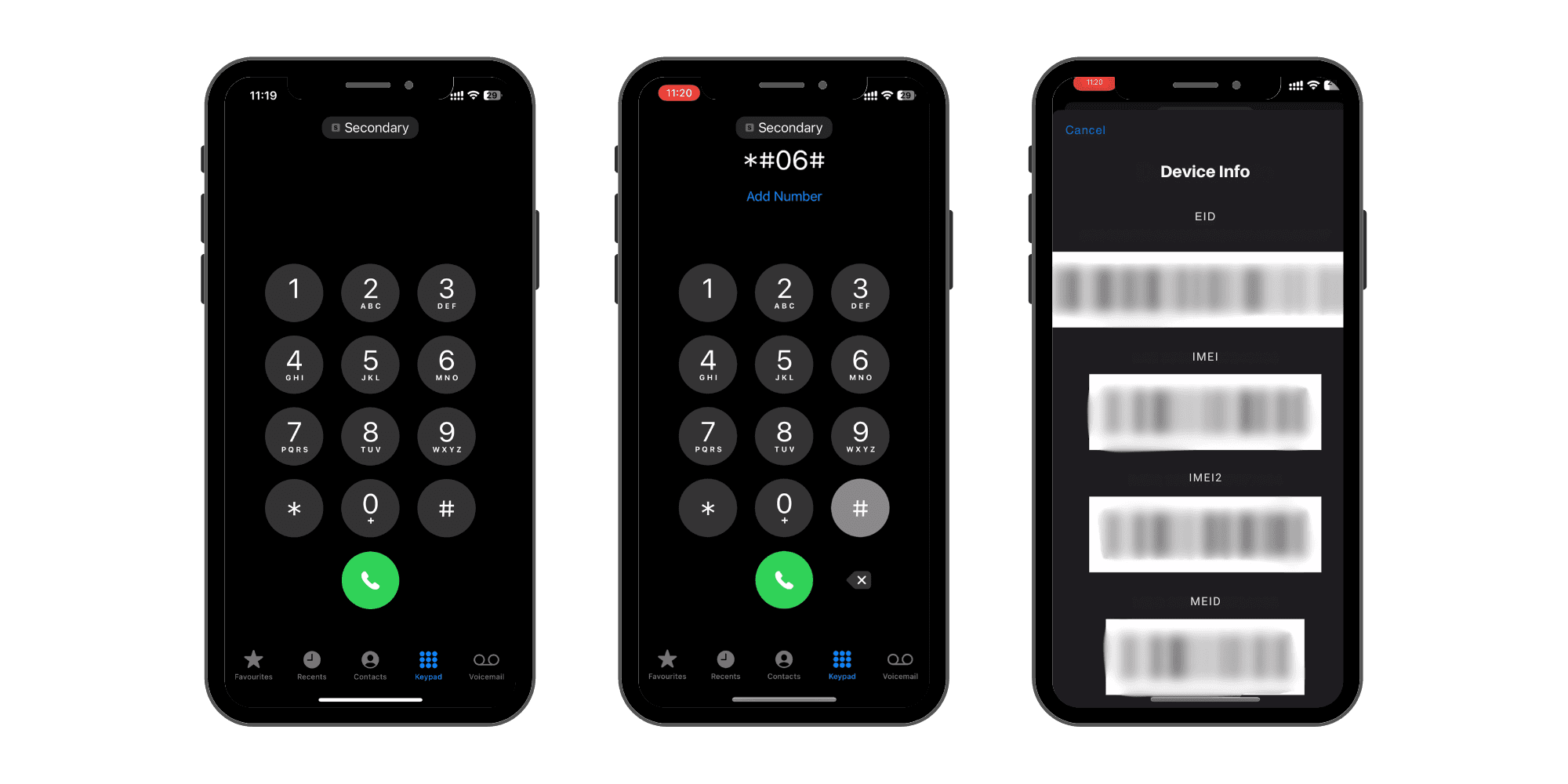
Before you set up an eSIM, you need to confirm your iPhone supports it. Most iPhones from the XR onward do. The quickest check: go to Settings > General > About and look for an EID number. If it's there, your iPhone supports eSIM.
You can also dial *#06# — if multiple IMEI numbers appear, your device is eSIM-capable.
Click here for our comprehensive list of eSIM compatible phones.
| iPhone Model | eSIM Support |
|---|---|
| iPhone 16, 16 Plus, 16 Pro, 16 Pro Max | Yes |
| iPhone 15, 15 Plus, 15 Pro, 15 Pro Max | Yes |
| iPhone 14, 14 Plus, 14 Pro, 14 Pro Max | Yes (US models: eSIM only, no physical SIM tray) |
| iPhone 13, 13 mini, 13 Pro, 13 Pro Max | Yes |
| iPhone 12, 12 mini, 12 Pro, 12 Pro Max | Yes |
| iPhone 11, 11 Pro, 11 Pro Max | Yes |
| iPhone SE (2nd gen, 2020) | Yes |
| iPhone SE (3rd gen, 2022) | Yes |
| iPhone XS, XS Max | Yes |
| iPhone XR | Yes |
| iPhone X and earlier | No |
| iPhone 8, 8 Plus | No |
| iPhone SE (1st gen, 2016) | No |
Important notes:
US models of the iPhone 14 and newer have no physical SIM tray at all. They are eSIM-only and support two active eSIM profiles simultaneously.
iPhones sold in mainland China typically do not support eSIM due to regional regulations.
Carrier-locked iPhones: If your phone is locked to a specific carrier, travel eSIMs may not work. Check your lock status at Settings > General > About > Carrier Lock. If it says anything other than "No SIM restrictions," contact your home carrier to unlock your device before purchasing a travel eSIM.
Does the iPhone 11 Support eSIM?
Yes. The iPhone 11, 11 Pro, and 11 Pro Max all support eSIM. These models use one physical nano-SIM alongside one eSIM, giving you dual SIM capability.
Does the iPhone 12 Support eSIM?
Yes. All iPhone 12 models, including the 12 mini, support eSIM. The setup process is identical across the lineup.
Does the iPhone 13 Support eSIM?
Yes. All iPhone 13 models support eSIM. US models can run two eSIM profiles simultaneously without a physical SIM.
Does the iPhone SE Support eSIM?
The iPhone SE 2nd generation (2020) and 3rd generation (2022) both support eSIM. The original iPhone SE from 2016 does not.
How To Set Up an eSIM on iPhone: 3 Methods
There are three ways to set up an eSIM on iPhone. The method depends on your provider. KnowRoaming supports all three.
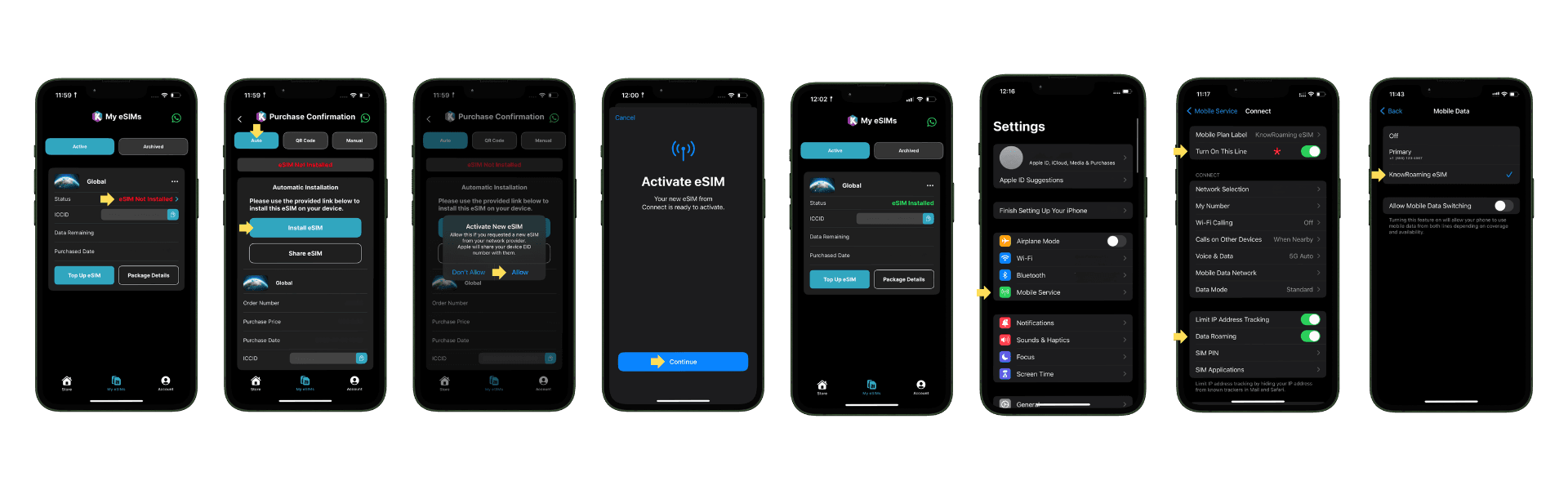
Method 1: Install via the KnowRoaming App (Easiest)
This is the fastest method and requires no QR code scanning.
- Download the KnowRoaming app on your iPhone.
- Create an account and purchase your eSIM plan.
- Open your plan in the app and tap Install eSIM.
- Follow the on-screen prompts to download and activate your eSIM profile.
- Go to Settings > Cellular and confirm the new plan appears.
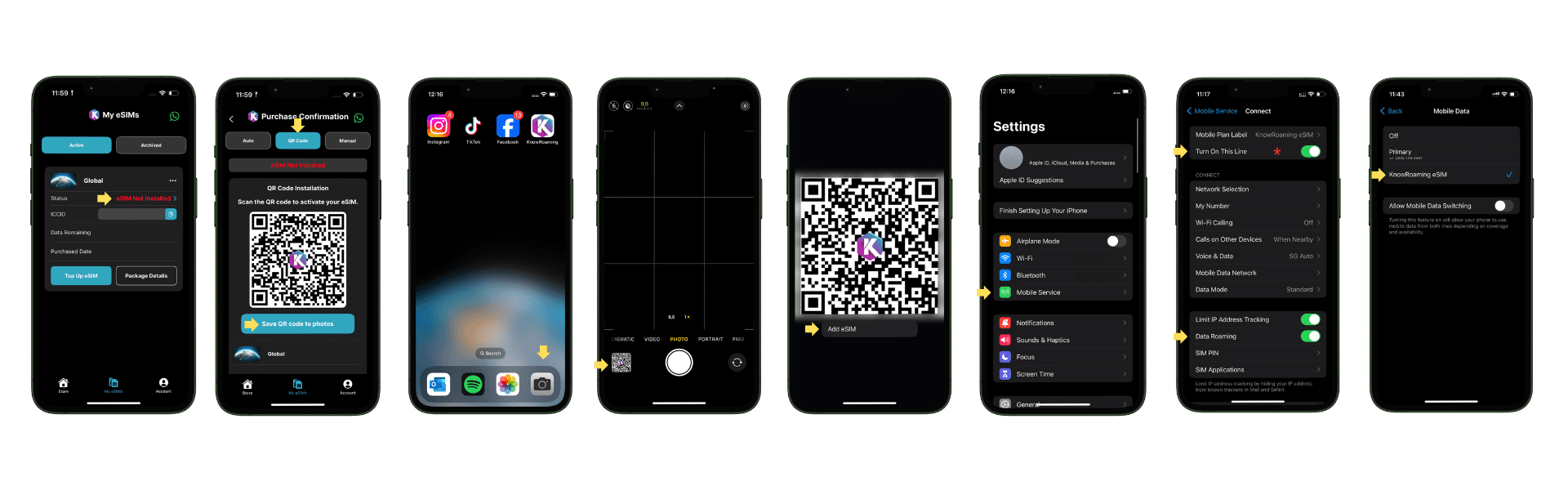
Method 2: Scan a QR Code
- Connect your iPhone to Wi-Fi.
- Open Settings and tap Cellular (or Mobile Data depending on your iOS version).
- Tap Add eSIM.
- Select Use QR Code.
- Scan the QR code from your KnowRoaming confirmation email.
- Follow the prompts to download and label the plan.
- Enable the new eSIM line when prompted.
Tip: If you need to scan the QR code on the same device that received it, take a screenshot of the QR code and use a second device or print it to scan.
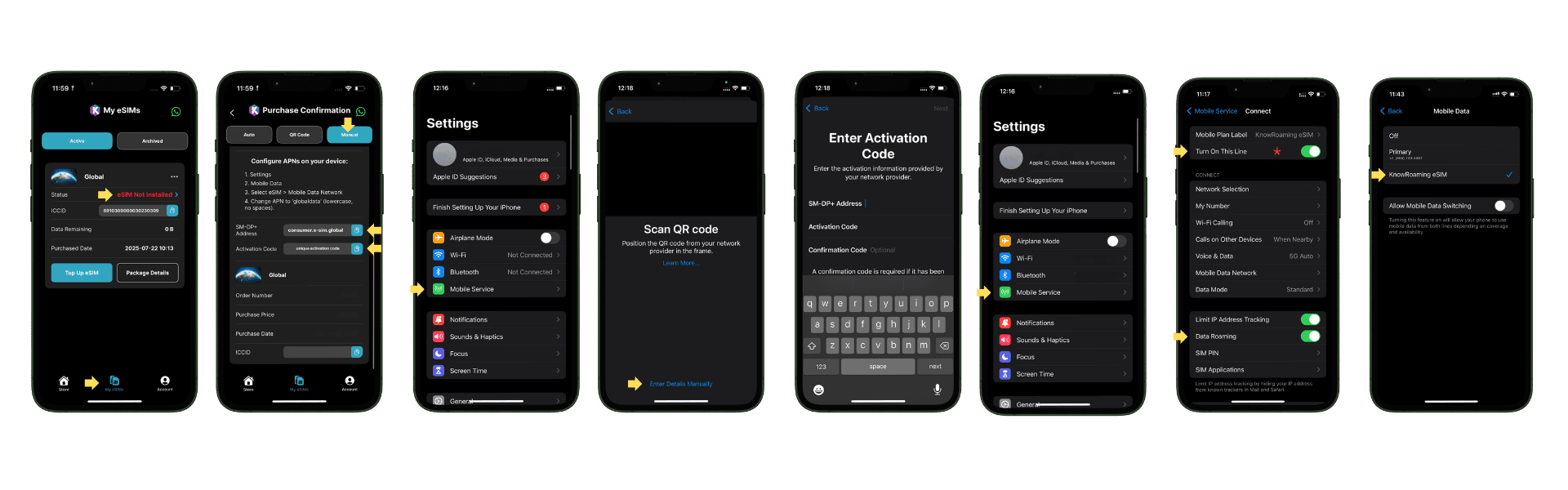
Method 3: Enter Details Manually
If QR scanning is not working, you can enter your eSIM credentials manually.
- Go to Settings > Cellular > Add eSIM.
- Tap Enter Details Manually.
- Enter the SM-DP+ address and activation code provided by KnowRoaming.
- Follow the prompts to complete installation.
How To Activate Your KnowRoaming eSIM for Travel
Installing and activating your eSIM are two different steps. Installation downloads the profile to your phone. Activation connects it to a network. For travel eSIMs, the timing matters.
KnowRoaming eSIMs do not activate automatically. You need to manually toggle the eSIM on when you arrive at your destination.
Before You Fly
Install your eSIM at home on Wi-Fi, at least the day before you travel.
If you install it early, deactivate it immediately so it does not try to connect before you arrive. Go to Settings > Cellular > SIM Manager and toggle your KnowRoaming eSIM off.
Rename your eSIM to "KR eSIM" so it is easy to identify when switching. Go to Settings > Cellular > [your eSIM] > Cellular Plan Label and enter the name.
On Arrival
Once you land and clear the airport, activate your eSIM:
- Go to Settings > Cellular > SIM Manager and toggle the KR eSIM on.
- Go to Settings > Cellular and set Mobile Data to your KnowRoaming eSIM.
- Go to Settings > Cellular > Mobile Networks and turn Data Roaming on.
- If no signal appears within a minute, switch Airplane Mode on for 30 seconds, then off again to force a network scan.
When You Return Home
Toggle your KnowRoaming eSIM off in SIM Manager to prevent any unintended data use. Switch Mobile Data back to your primary home SIM or plan.
Using Dual SIM: Keep Your Home Number While Using a Travel eSIM
One of the biggest advantages of eSIM for travel is that you can keep your home number active while running a separate data plan through KnowRoaming.
Your iPhone supports dual SIM out of the box. Your home carrier SIM (physical or eSIM) stays active for calls and texts. Your KnowRoaming eSIM handles all data. You will not miss calls, lose access to iMessage, or need to share a temporary number with anyone.
To set this up after activating your KnowRoaming eSIM:
- Go to Settings > Cellular.
- Under Mobile Data, select your KnowRoaming eSIM.
- Under Default Voice Line, keep your home SIM selected.
- Under iMessage and FaceTime, keep your home number selected.
Your phone will now route data through KnowRoaming and calls or texts through your home line simultaneously.
Managing Your eSIM on iPhone
How To Switch Between eSIM Profiles
Go to Settings > Cellular, tap the plan you want to use, and toggle it on. Only one plan can be set as your Mobile Data source at a time.
How To Rename an eSIM
Go to Settings > Cellular > [your eSIM] > Cellular Plan Label. Assign a name like "KR eSIM" or "Home" to make switching easier, especially when managing multiple plans.
How Many eSIMs Can an iPhone Store?
Most iPhones can store 8 to 10 eSIM profiles, though only one or two can be active simultaneously. You can store previous travel eSIMs and reactivate them for future trips without reinstalling.
How To Remove an eSIM
Go to Settings > Cellular > [your eSIM] > Delete eSIM. Note: deleting an eSIM from your device removes the profile permanently. Contact your provider before deleting if you need the plan reissued.
eSIM vs Physical SIM: Which Is Better for Travel?
| Feature | eSIM | Physical SIM |
|---|---|---|
| Setup | Digital, via app or QR code | Physical card required |
| Time to activate | Under 5 minutes | Minutes to hours if buying locally |
| Keep your home number | Yes, via dual SIM | No, requires SIM swap |
| Buy before departure | Yes | Requires local purchase or international delivery |
| Risk of loss or damage | None | Can be lost, bent, or damaged |
| Profiles stored | 8 to 10 | 1 per tray slot |
| Best for | Frequent travelers, multi-destination trips | Simple single-carrier use |
For international travel, eSIM wins on every practical dimension. You avoid airport SIM kiosks, skip roaming fees, and land with data already ready to go.
eSIM Not Working? How To Fix the Most Common Issues
eSIM Installed But No Data
This is the most common post-install problem. Work through these in order:
- Data Roaming is off. Go to Settings > Cellular > [your KR eSIM] > Data Roaming and toggle it on. Even travel eSIMs require this toggle.
- Wrong data line selected. Go to Settings > Cellular > Mobile Data and confirm KnowRoaming eSIM is selected.
- Network not locked onto a local carrier. Go to Settings > Cellular > Network Selection, turn off Automatic, wait for the scan to complete, select a local carrier, then turn Automatic back on.
- APN not set correctly. KnowRoaming APN is
globaldata. Go to Settings > Cellular > [your eSIM] > APN and enter this manually if required. - Still no signal. Toggle Airplane Mode on for 30 seconds, then off. This forces the phone to re-register on the network.
"Add eSIM" Option Is Missing
Your iPhone may be carrier-locked. Go to Settings > General > About > Carrier Lock. If it shows a carrier restriction, contact your home carrier to request an unlock. Most carriers unlock devices that have completed their contract term.
Alternatively, confirm your iPhone model is XR or newer, and that you are running an up-to-date version of iOS.
QR Code Not Scanning
Clean your camera lens. Increase screen brightness on the device displaying the QR code. If it still will not scan, use Method 3 (manual entry) with the SM-DP+ address and activation code from your confirmation email.
eSIM Not Activating After Scanning
The QR code may have already been used. Each QR code is single-use. Contact KnowRoaming's 24/7 support via WhatsApp or the contact form to have a new one issued.
eSIM Was Deleted After an iOS Update
In rare cases, iOS updates have caused eSIM profiles to be erased. If this happens, contact KnowRoaming support and your provider can reissue the eSIM to the same device.
How To Transfer an eSIM to a New iPhone
When you upgrade to a new iPhone, you can move your eSIM using Apple's Quick Transfer feature.
- Place your new iPhone next to your old one.
- Power on the new iPhone and follow the Quick Start setup prompts.
- When asked about transferring your eSIM, confirm on both devices.
- Both phones need to be unlocked and have Bluetooth enabled.
For KnowRoaming eSIMs, you can also reinstall directly from your account. Log into the KnowRoaming app on your new device, navigate to My eSIMs, and follow the reinstall instructions.
Before selling or trading in your old iPhone: Always delete your eSIM profiles from the device first. Go to Settings > Cellular > [your eSIM] > Delete eSIM for each profile.
Why Choose KnowRoaming for Your Travel eSIM?
KnowRoaming is a global travel eSIM provider with coverage in 200+ destinations across every major region, including Europe, Asia, North America, Latin America, Africa, the Middle East, and Oceania.
Key features:
- Global and regional eSIM plans to suit any trip length or destination
- Fast installation in minutes via the KnowRoaming app
- No roaming fees, no bill shock, fixed-rate data pricing
- Dual SIM compatible, so your home number stays active
- 24/7 customer support via WhatsApp and contact form
Browse KnowRoaming eSIM plans for your destination
What Experts Say About KnowRoaming
Independent tech publication TechRadar reviewed KnowRoaming and called it "easy to install and use," highlighting its wide destination coverage as a key advantage: "KnowRoaming offers eSIMs with high-speed connections in over 200 destinations. Its affordable 7-day and 15-day plans make it ideal for tourists who prefer taking short international trips."
The Points Guy tested KnowRoaming's eSIM service and reported being able to purchase and add an eSIM in approximately 90 seconds, praising the speed and simplicity of the app-based setup process.
What Real Travelers Say
KnowRoaming holds a 4.5 out of 5 rating on REVIEWS.io based on 542 verified customer reviews, with 87% of reviewers recommending the service.
Here is what verified customers have said:
"Very simple and easy to use! Made staying connected while abroad very easy and never had a single connectivity issue!" — Adrian
"Quick and easy set up process, had no issues with connectivity, and was competitively priced. Would definitely use again for future travels." — Lee-Anne, after travel to Albania
"With KnowRoaming, I was able to communicate seamlessly with my contacts in China and Namibia. It enabled me to participate in all virtual meetings. The cost of the service was affordable." — Verified buyer
"Worked awesome. Bought it for my daughter for her student exchange program to Germany." — Shekar
"Initially had challenges setting up in China as there was a conflict with a previous eSIM. The KnowRoaming WhatsApp support team were very efficient in diagnosing the issue and resolving." — E, verified buyer
"Affordable and data lasts long. Kept me connected during my vacation. It's my second time using — used it for my Dubai travel and I had the same experience." — Verified buyer
If you run into any issue during or after setup, KnowRoaming's 24/7 support team is available via WhatsApp and the contact form on the website. As several customers have noted, the team is responsive and able to resolve most issues quickly, including eSIM conflicts, QR reissuance, and APN troubleshooting.
Frequently Asked Questions
How do I set up an eSIM on iPhone?
Go to Settings > Cellular > Add eSIM. Scan the QR code from your provider, or install directly through your provider's app. The process takes under five minutes on a stable Wi-Fi connection. Once installed, enable the plan and turn on Data Roaming before you travel.
How do I know if my iPhone supports eSIM?
Go to Settings > General > About and look for an EID number. If present, your iPhone supports eSIM. Models from the iPhone XR onward are all eSIM-compatible, with the exception of some iPhones sold in mainland China.
Does iPhone 11 have eSIM?
Yes. The iPhone 11, 11 Pro, and 11 Pro Max all support eSIM. They run one physical nano-SIM and one eSIM simultaneously.
Does iPhone 12 support eSIM?
Yes. All iPhone 12 models, including the 12 mini, support eSIM. Setup is the same as any other eSIM-compatible iPhone.
Does iPhone 13 have eSIM?
Yes. All iPhone 13 models support eSIM. US models can run two eSIM profiles simultaneously.
How do I activate an eSIM on iPhone?
After installing the eSIM profile, go to Settings > Cellular > SIM Manager and toggle the eSIM on. Set it as your Mobile Data source and enable Data Roaming. For KnowRoaming eSIMs, wait until you arrive at your destination before activating.
Can I use a travel eSIM and keep my home number?
Yes. iPhone's dual SIM feature lets your home SIM handle calls and texts while your KnowRoaming eSIM handles data. Both run simultaneously. Go to Settings > Cellular and assign each line its role.
Can I use eSIM on a carrier-locked iPhone?
If your phone is locked to a specific carrier, travel eSIMs from other providers may not work. Check at Settings > General > About > Carrier Lock. Contact your carrier to request an unlock if needed.
How do I transfer an eSIM to a new iPhone?
Use Apple's Quick Transfer feature during iPhone setup, with both devices nearby and Bluetooth on. For KnowRoaming eSIMs, you can also log into the app on your new device and reinstall directly from My eSIMs.
What do I do if my eSIM shows no signal after installation?
First, confirm Data Roaming is turned on and your KnowRoaming eSIM is selected as the Mobile Data source. If still no signal, go to Settings > Cellular > Network Selection, turn off Automatic, wait for a scan, and select a local carrier. Toggle Airplane Mode on and off if needed.
How many eSIMs can I store on my iPhone?
Most iPhones store 8 to 10 eSIM profiles, though only one or two can be active at once. You can switch between stored profiles at any time without reinstalling.
Can I use a hotspot with a KnowRoaming eSIM?
Yes. If your KnowRoaming plan includes data, you can enable Personal Hotspot to share your connection with other devices. Make sure your KnowRoaming eSIM is set as the Mobile Data line first.
What happens if I delete my eSIM from iPhone?
Deleting an eSIM removes the profile from your device permanently. You will need to contact your provider to have it reissued. Do not delete your eSIM unless you are certain you no longer need it or are preparing to sell your phone.