How to Install an eSIM for Travel: A Step-by-Step Guide
Last Updated: July 24, 2026
4.5


Installing a KnowRoaming eSIM takes under 5 minutes. You need a stable internet connection, an unlocked device, and the KnowRoaming app. Install before you fly. Activate when you land. That is the whole process.
Whether you are on an iPhone, Samsung Galaxy, Google Pixel, or setting up from your computer, this guide walks you through every step — including how to activate on arrival, how to switch back when you return, and exactly what to do if something is not connecting.
KnowRoaming is rated 4.5 out of 5 across 542+ verified reviews on REVIEWS.io and has been reviewed by PCMag and TechRadar as one of the best travel eSIM providers available.
Download our installation guides here:
eSIM Installation Guide for Android
eSIM Installation Guide for IOS
eSIM Installation Guide for Desktop/Web
What Is an eSIM?
An eSIM (Embedded SIM) is a digital SIM card built directly into your phone. Instead of inserting a physical SIM card, you download a carrier plan onto your device. You can switch between plans without touching your phone's SIM tray, and your original SIM card stays in place the whole time.
For travelers, this means no roaming fees from your home carrier, no queuing at airport kiosks for a local SIM, and no signal gap between landing and getting connected. You buy a plan online, install it at home, and your phone works the moment you arrive.
Before You Install: The Checklist
Run through these four things before you open the app. Skipping this is the most common reason installations fail.
1. Your device must be unlocked. A carrier-locked phone cannot run a third-party eSIM. If you bought your phone on a carrier plan, it may be locked. Contact your carrier to confirm — most unlock devices for free once your contract allows it.
2. You need a Wi-Fi or mobile data connection. eSIM installation is a download. You cannot install on a plane or without internet. Do it at home, at your hotel before checkout, or at the airport before you board.
3. Check your device is eSIM compatible. eSIM is supported on iPhone XS and later, Samsung Galaxy S20 and later, Google Pixel 3 and later, and many other modern smartphones. If you are unsure, check the KnowRoaming compatibility checker on each plan page before purchasing.
4. Install and activation are two different things. This is the step most travelers confuse. Installing downloads the eSIM onto your device. Activating connects it to the network. You do these separately — install before you travel, activate when you land. If you try to activate before reaching a supported destination, you will see an "eSIM activation failed" message. That is normal. It just means you are not there yet.
Why Choose a Travel eSIM?
- Connected the second you land. No waiting, no queuing, no local SIM hunt
- No bill shock, choose a fixed data plan and know your costs upfront
- Your home number stays active. Your physical SIM keeps receiving calls and texts
- Flexible plans. Choose daily, weekly, or monthly data for any destination
- Eco-friendly. No plastic SIM card waste
How to Install a KnowRoaming eSIM on iPhone
KnowRoaming offers three installation methods for iPhone. Start with Automatic — it requires the fewest steps. Use QR Code as your backup. Use Manual only if the other two have not worked.
Note: On some iPhones, "Mobile Service" may appear as "Mobile Data" or "Cellular" depending on your iOS version and region. These refer to the same menu.
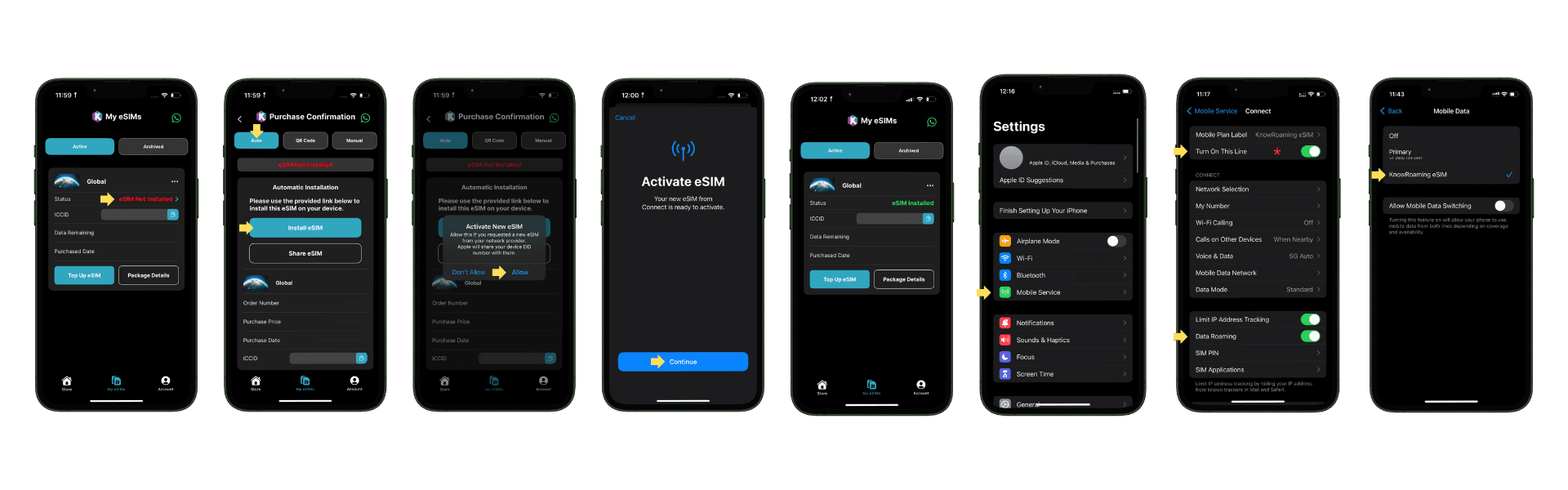
Method 1: Automatic Installation (Recommended)
- Open the KnowRoaming app and go to My eSIMs.
- Select the eSIM package you want to install and tap eSIM Not Installed.
- Tap Auto at the top, then tap Install eSIM.
- The eSIM Install launcher will appear — tap Allow. (Apple will share your device EID with the network provider. This is standard and required.)
- Wait a few minutes while the eSIM downloads. You will see a "Connecting to your network provider" screen.
- Once complete, your app shows eSIM Installed in green. Done.
Now deactivate your eSIM until you arrive (see the Deactivation section below).
Method 2: QR Code Installation
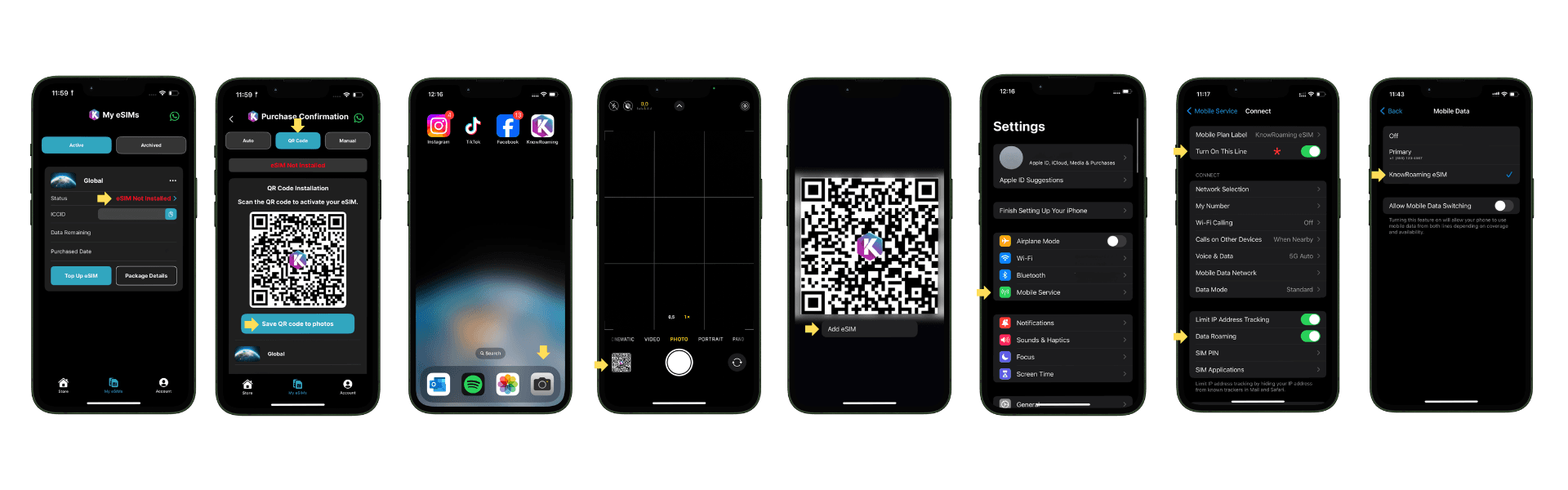
- Open the KnowRoaming app and go to My eSIMs.
- Tap eSIM Not Installed on your package, then tap QR Code at the top.
- Tap Save QR Code to Photos.
- Open your Camera app, navigate to the saved photo, and tap and hold on the QR code.
- Tap Add eSIM when the prompt appears.
- Wait a few minutes. Your app will confirm eSIM Installed.
Method 3: Manual Installation
Use this if Automatic and QR Code have not worked.
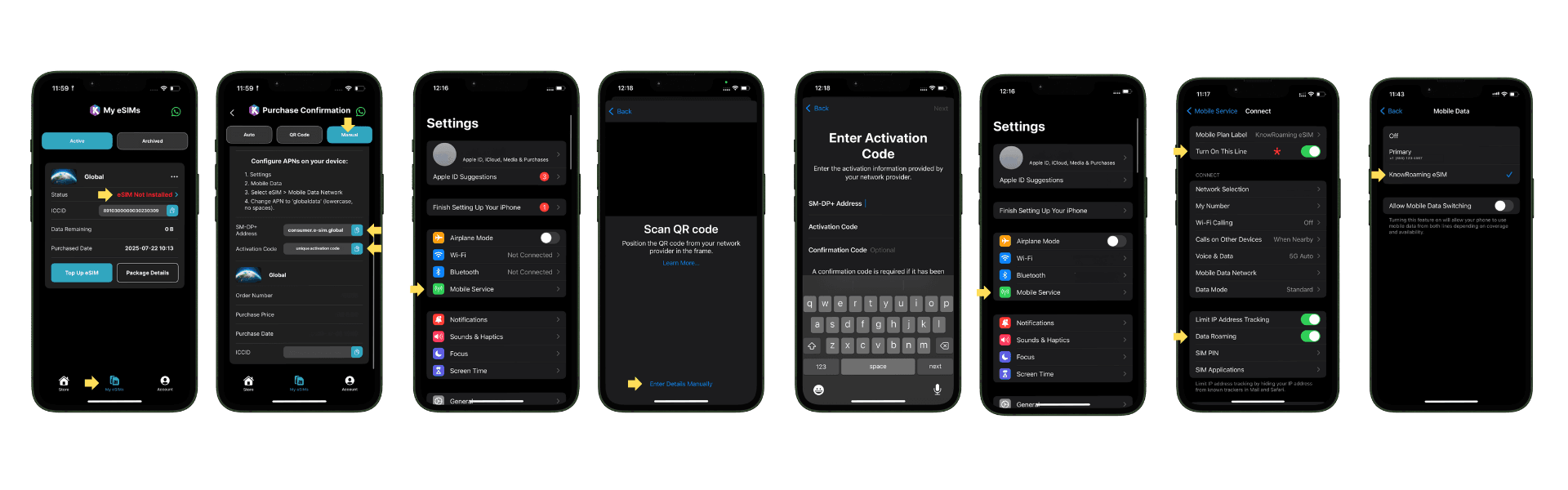
Get your credentials from the app:
- Go to My eSIMs in the KnowRoaming app.
- Tap eSIM Not Installed, then tap Manual.
- Copy your SM-DP+ Address and Activation Code.
The SM-DP+ address is the server address that delivers your eSIM profile to your device — think of it like a unique download link for your SIM. You just need to copy and paste it accurately.
Enter the details on your iPhone:
- Go to Settings > Mobile Service > Add eSIM.
- Tap Use QR Code, then tap Enter Details Manually.
- Enter your SM-DP+ Address and Activation Code exactly as shown in the app.
- Your iPhone will download the eSIM profile. Follow any additional prompts.
- Your eSIM is now installed.
Need help? Visit our support page or contact our team, available 24/7 in multiple languages.
How to Install a KnowRoaming eSIM on Android (Samsung Galaxy and Others)
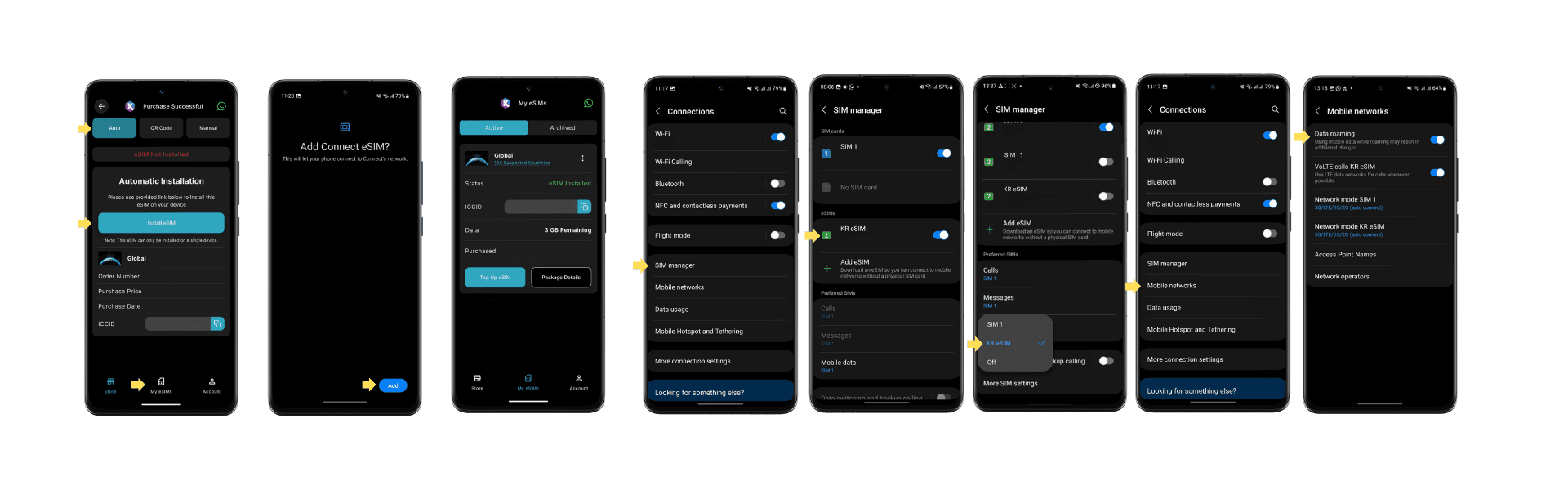
Method 1: Automatic Installation (Recommended)
- Open the KnowRoaming app and go to My eSIMs.
- Tap eSIM Not Installed on your package, then choose Auto Install.
- Tap Install eSIM, then tap Add.
- Wait for the confirmation message. Your eSIM is now installed.
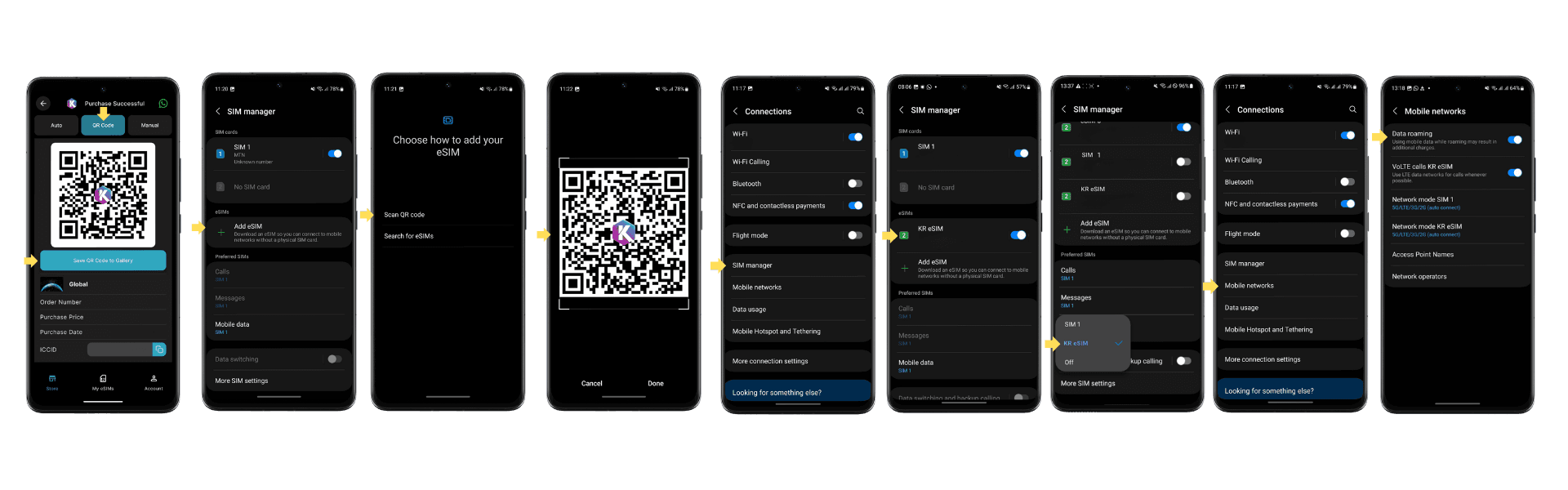
Method 2: QR Code Installation
- In the KnowRoaming app, go to My eSIMs > eSIM Not Installed.
- Save the QR code from the app.
- On your device, go to Settings > Connections > SIM Manager > Add eSIM > Scan QR.
- Scan the QR code you saved. Follow the on-screen prompts.
- Your eSIM is now installed.
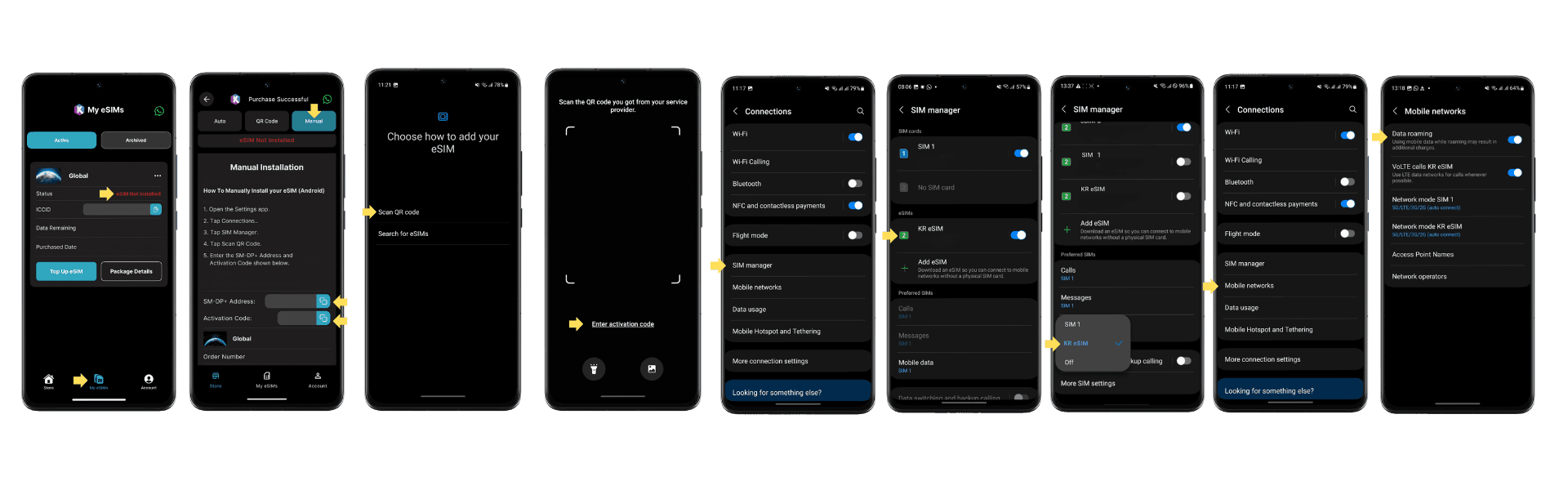
Method 3: Manual Installation
- In the KnowRoaming app, go to My eSIMs > eSIM Not Installed > Manual.
- Copy your SM-DP+ Address and Activation Code.
- On your device, go to Settings > Connections > SIM Manager > Add eSIM > Enter Activation Code.
- Enter the details and follow the prompts.
- Your eSIM is now installed.
Need help? Visit our support page or contact our team, available 24/7 in multiple languages.
How to Install a KnowRoaming eSIM from Your Computer
If you prefer to install via your computer, the QR code method works across all devices.
- Log in at knowroaming.com and go to My eSIMs & Top Up.
- Select your package and tap eSIM Not Installed. Your QR code will display on screen.
- On your mobile device, open your camera and scan the QR code displayed on your computer screen.
- Accept all prompts on your phone. The eSIM installs within minutes.
Need help? Visit our support page or contact our team, available 24/7 in multiple languages.
Important: Deactivate Your eSIM Before You Travel
Once your eSIM is installed, it is ready to connect. If you are not yet at your destination, deactivate it so your regular SIM stays active and you do not get an "activation failed" error.
On iPhone:
- Go to Settings > Mobile Service > SIMs.
- Select your KnowRoaming eSIM and toggle Turn On This Line to off.
- Confirm Mobile Data is set back to your regular SIM.
On Android and Pixel:
- Go to Settings > Connections > SIM Manager (or Network & Internet > SIMs on Pixel).
- Toggle your KnowRoaming eSIM off.
- Confirm mobile data is set to your regular SIM.
Pro tip: Rename your eSIM so it is easy to find when you land. On iPhone, go to Settings > Mobile Service > SIMs, tap the KnowRoaming eSIM, tap Mobile Plan Label, then Custom Label to give it a recognizable name.
How to Activate Your eSIM on Arrival
Only activate once you have landed and are at your destination.
On iPhone:
- Go to Settings > Mobile Service > SIMs.
- Select your KnowRoaming eSIM and toggle Turn On This Line to on.
- Set Mobile Data to your KnowRoaming eSIM.
- Go back into the eSIM settings and confirm Data Roaming is on.
On Android and Pixel:
- Go to Settings > Connections > SIM Manager (or Network & Internet > SIMs).
- Toggle your KnowRoaming eSIM on.
- Set mobile data to your KnowRoaming eSIM.
- Ensure data roaming is enabled.
Give your device 1 to 2 minutes to connect. If it does not connect, switch to airplane mode for 30 seconds, turn it off, and wait. If you see "activating" on screen, wait for it to complete before tapping anything else.
How to Turn Off Your eSIM When You Return
When you get home, switch back to your regular SIM.
- Go to your SIM settings (same menu as above).
- Toggle your KnowRoaming eSIM off.
- Set mobile data back to your home SIM.
Your KnowRoaming eSIM stays installed. Next time you travel, just reactivate it on arrival. No reinstallation needed.
Troubleshooting: eSIM Installed but Not Connecting
If your eSIM is active but you cannot get data, the fix is almost always one of two things.
Fix 1: Update your APN settings
- Go to your phone's mobile/cellular settings.
- Select your KnowRoaming eSIM.
- Open Mobile Data Network (iPhone) or Access Point Names (Android).
- Change the APN to: globaldata All lowercase. One word. No spaces before or after. Leave all other fields blank.
- Try accessing a website.
- If still not connecting, turn airplane mode on for 30 seconds, then off. Wait 2 minutes and retry.
Fix 2: Check for a network lock
If the APN fix does not work, your device may be network locked — restricted by your home carrier to only run their own SIMs. Contact your carrier and ask them to unlock your device. Once unlocked, your eSIM will work.
Still stuck? Contact KnowRoaming's 24/7 support team via the support page or directly on WhatsApp. The team is available in multiple languages.
What Travelers Say
"Very simple and easy to use! Made staying connected while abroad very easy and never had a single connectivity issue! Highly recommend!" — Adrian, verified buyer
"Easy to buy, load and top up with great coverage and prices." — Anonymous, verified buyer
"It's always good to be connected to the Internet the second you land in another country, without necessarily having to purchase a local SIM card." — Maria, verified buyer
"Initially had challenges setting up in China as there was a conflict with a previous eSIM. The KnowRoaming WhatsApp support team were very efficient in diagnosing the issue and resolving." — E, verified buyer
Read more reviews on REVIEWS.io and Trustpilot.
eSIM Installation FAQs
Can I install a KnowRoaming eSIM without Wi-Fi? No. Installation is a download and requires an active internet connection. Install at home or anywhere with reliable Wi-Fi before you depart.
Will installing an eSIM delete my contacts or data? No. Installing an eSIM does not affect your existing contacts, apps, or data. Your physical SIM card and home number stay exactly as they are.
Can I have two eSIMs active at the same time? Most modern smartphones support dual SIM — your physical SIM for calls and texts, and your KnowRoaming eSIM for data. Both can run simultaneously.
What does "eSIM activation failed" mean? It means your phone tried to connect to a network but could not find a supported one — usually because you are not yet in the destination country. Deactivate the eSIM, travel to your destination, then activate it there.
What is the SM-DP+ address? It is a server address used during manual eSIM installation. Your device connects to it to download your eSIM profile. You only need it if Automatic and QR Code installation have not worked. Find it in the KnowRoaming app under My eSIMs > Manual.
Can I reinstall my eSIM if I switch phones? eSIMs are tied to the device they are installed on. If you get a new phone, contact KnowRoaming support to arrange a transfer.
How many eSIMs can I store on my phone? iPhones can store up to 8 eSIM profiles. Only one eSIM can be active at a time alongside your physical SIM.
Ready to Get Started?
Download the KnowRoaming app, install your eSIM at home, and activate it when you land.
Need help? Our support team is available 24/7 at KnowRoaming.com/support or on WhatsApp.
Browse eSIM plans for 200+ destinations.